sql
PostgreSQL
Database management
The CREATE DATABASE command creates a database:
CREATE DATABASE message_boards;
You can then connect to the database with the \\c <database-name> command:
\c message_boards;
Here are all the basic slash commands you can do:
\c <db-name>;: connects to the specified database\l: lists all databases\d: lists all tables in the database\?: help command\h: lists all possible SQL queries you can do\q: quits pgsql
Basics
Creating tables
CREATE TABLE users (
	user_id INTEGER PRIMARY KEY GENERATED ALWAYS AS IDENTITY,
	username VARCHAR(25) UNIQUE NOT NULL,
	email VARCHAR(50) UNIQUE NOT NULL,
  full_name VARCHAR(50) NOT NULL,
	last_login TIMESTAMP,
	created_at TIMESTAMP NOT NULL
);
PRIMARY KEY: establishes field as the primary key of the tableGENERATED ALWAYS AS IDENTITY: basically autoincrementUNIQUE: enforces a uniqueness constraint on the fieldNOT NULL: enforces that the data not be nullDEFAULT(value): gives a default value if a field is optional
And here are the data types in sql:
VARCHAR(n): string of max lengthn. Strings must be in single quotes''TEXT: string of arbitrary length. This stores a lot of data, however.INTEGER: an intTIMESTAMP: a date timestamp
Dropping tables
You can delete tables with the DROP TABLE keywords, like so:
DROP TABLE tablename;
Altering tables
The ALTER TABLE command changes the structure of a table, and is very expensive to do. This query has a high chance of failing when there is data already in this table, since the existing will have to adhere to the new table rules, which may not be possible.
The basic syntax to alter a table is as follows:
ALTER TABLE table_name COMMAND
The COMMAND is basically what we want to alter about the table, whether to add columns or delete columns:
ADD COLUMN col: adds a column to the table. We also have to specify the constraints and data type of the columnDROP COLUMN col_name: deletes the specified column from the table.
-- add genre column, which is a string with default value of American
ALTER TABLE ingredients ADD COLUMN genre VARCHAR(255) NOT NULL DEFAULT 'American';

-- delete genre column
ALTER TABLE ingredients DROP COLUMN genre;

-- add image and type columns as strings
ALTER TABLE ingredients
ADD COLUMN image VARCHAR(100) NOT NULL,
ADD COLUMN type VARCHAR(100) NOT NULL;
WHERE and conditionals
The WHERE clause is extremely important and used for conditional filtering, not only in querying but in deletions, joining, and updates.
Here are basic conditional operators:
!=: not equals=: conditional equalsOR: or conditional operatorAND: and conditional operator>,<,>=,<=: Mathematical comparison operators.
SELECT * FROM ingredients WHERE type != 'vegetable' AND id > 5 LIMIT 10;
Conditional Text Search
Using the LIKE and ILIKE conditional text clauses, we can use regex-like text-searching capabilities.
LIKE: used for regex-like text-searching capabilitiesILIKE: case-insensitive version ofLIKE.
The basic syntax is as follows:
-- gets all records that have type following pattern .*rui.*
SELECT * FROM ingredients WHERE type LIKE '%rui%';
There are special characters we can use with the LIKE and ILIKE clauses:
%: represents any number of any characters - exactly like.*in regex._: matches exactly one character. Exactly like a single.in regex
Other conditionals
IS NULL: returns true if the specified value is nullIS NOT NULL: returns true if the specified value is not null
Querying Data
The basic of querying data is used with the SELECT keyword, where you have two basic forms:
- Return every field
SELECT * FROM table_name;
- Return only the fields you specify
SELECT (column_name_1, column_name_2) FROM table_name;
All other querying tactics are built off these ones.
ORDER BY
The ORDER BY operator is used to sort data based on a field from a table, either ascending or descending.
You can choose descending order with DESC, but ASC is the default.
When combining group by and order by, you can do stuff as follows:
SELECT COUNT(*) AS count, type  FROM ingredients
GROUP BY type ORDER BY COUNT(*) DESC;
LIMIT and OFFSET
The LIMIT <n> keyword is used to limit the amount of rows returned based on the number you specify. This pairs well with the ORDER BY operator to get the top 5 of something.
SELECT (Name) FROM Artist ORDER BY name DESC LIMIT 5;
The command above returns this:
Zeca Pagodinho
Youssou N'Dour
Yo-Yo Ma
Yehudi Menuhin
Xis
You can also use the OFFSET <n> keyword which pairs with limit to skip the specified n number of records. This makes pagination possible.
SELECT (Name) FROM Artist LIMIT 5 OFFSET 5;
NOTE
LIMIT always comes at the end of a SELECT query since it needs to work after all the filtering.
IMPORTANT
In practice, most people have their primary keys be autoincrementing numerical IDs since that speeds up pagination with LIMIT and OFFSET drastically. The OFFSET keyword works in linear time since it has to count a certain number of documents before getting to the LIMIT. To avoid this, we pair querying autoincrementing numerical IDs and then limiting based on that.
In the example below, we query for the first 10 rows where its autoincrementing primary key is greater than 20.
SELECT *
FROM ingredients
WHERE id > 20
LIMIT 10;
Inserting data
Inserting data follows the standard in SQL, where you specify the columns to insert into, then a comma separated list of values corresponding to each column.
INSERT INTO ingredients (
  title, image, type
) VALUES
  ( 'avocado', 'avocado.jpg', 'fruit' ),
  ( 'banana', 'banana.jpg', 'fruit' )
ON CONFLICT DO NOTHING;
However, there are additional modifiers you can do related to insertion:
ON CONFLICT DO NOTHING: if there is some column constraint that would make the insertion error out, just skip that individual row insertion.ON CONFLICT ... DO UPDATE: if there is a conflict made by a column constraint based on the columns you specify, then perform an update.
This is an example of how you would do an upsert in SQL:
INSERT INTO ingredients (
  title, image, type
) VALUES
  ( 'watermelon', 'banana.jpg', 'this won''t be updated' )
ON CONFLICT (title) DO UPDATE SET image = excluded.image;
Updating Data
This is the basic syntax of an update:
UPDATE users SET full_name= 'Brian Holt' WHERE user_id = 2
Deleting Data
This is the basic syntax for delete: DELETE FROM <table> WHERE <condition>. We need a conditional to tell which rows to delete, else we’ll delete everything from the table.
DELETE FROM users WHERE user_id=1000;
WARNING
The important thing to know is that deleted records are permanently deleted. You want to be cautious with deletion, or do a “soft delete” where you just set a deleted property to true.
RETURNING
UPDATE users SET full_name= 'Brian Holt', email = 'lol@example.com'
WHERE user_id = 2 RETURNING *;
Both updating and deleting data follow essentially the same syntax, but any data modification querying will have the ability to access the RETURNING keyword, which allows you to return the newly modified data from the modification query.
RETURNING *: returns the records after you update or delete them, so it’s kind like immediately running an implicitSELECTafterwards.
Joins
Foreign keys
Foreign keys are used to provide constraints on how data in tables gets inserted, updated, or deleted in relation to other tables. They also automatically provide indices that speed up querying by those foreign keys.
In the example below, we have three tables: users, boards, and comments. comments has two foreign keys here:
user_id: references theuser_idfield living in theuserstable. If a user gets deleted, any comment that had that specific user id for itsuser_idvalue will also get deleted because of theON DELETE CASCADEboard_id: references theboard_idfield living in theboardtable. If a user gets deleted, any comment that had that specific board id for itsboard_idvalue will also get deleted because of theON DELETE CASCADE
CREATE TABLE users (
  user_id INTEGER PRIMARY KEY GENERATED ALWAYS AS IDENTITY,
  username VARCHAR ( 25 ) UNIQUE NOT NULL,
  email VARCHAR ( 50 ) UNIQUE NOT NULL,
  full_name VARCHAR ( 100 ) NOT NULL,
  last_login TIMESTAMP,
  created_on TIMESTAMP NOT NULL
);

CREATE TABLE boards (
  board_id INTEGER PRIMARY KEY GENERATED ALWAYS AS IDENTITY,
  board_name VARCHAR ( 50 ) UNIQUE NOT NULL,
  board_description TEXT NOT NULL
);

CREATE TABLE comments (
  comment_id INTEGER PRIMARY KEY GENERATED ALWAYS AS IDENTITY,

  -- user_id field here connects to user_id field on users table
  user_id INT REFERENCES users(user_id) ON DELETE CASCADE,

 -- board_id field here connects to board_id field on boards table
  board_id INT REFERENCES boards(board_id) ON DELETE CASCADE,
  comment TEXT NOT NULL,
  time TIMESTAMP
);
REFERENCES <table>(field_name) is the syntax to establish a foreign key by establishing what field in which table this field you are creating will connect with.
You also have access to 4 foreign key modifiers that allow you to control what happens to the data if the object referenced by its foreign key gets deleted:
ON DELETE CASCADE: whenever the record you’re referencing gets deleted, so too will this record. Basically creates a link where if the thing you’re referencing gets deleted, this record will also autodelete.ON DELETE NO ACTION: does not allow a referencing record to get deleted, errors out. The record that has the foreign key on it needs to get deleted first.ON DELETE SET NULL: when deleting a referencing record, sets that field to null.ON DELETE SET DEFAULT <value>: when deleting a referencing record, sets that field to a some default value.
Primary keys in depth
You can create primary keys from a combination of foreign keys like so, using the CONSTRAINT keyword. It guarantees the primary key will be a unique combination of the foreign keys.
CREATE TABLE ingredients (
	recipe_id INT REFERENCES recipes(recipe_id) ON DELETE NO ACTION,
	photo_id INT REFERENCES photos(photo_id) ON DELETE NO ACTION,
	CONSTRAINT ingredients_primary_key PRIMARY KEY (recipe_id, photo_id)
)
Intro to joins

Joins are often a much more efficient way of combining multiple queries into one step.
syntax
- The order in joins matter. The table name that comes after the
FROMkeyword we will call as the querying table, and the table name that we’re joining on we will call as the joining table. - The different types of joins have different behavior depending on which table is joining and which is querying.
-- get back comment id, user id, user name, and comment itself
SELECT comment_id, comments.user_id, users.username, LEFT(comment, 20) AS user_comment
FROM comments
-- joins comments and users tables together on the below condition
INNER JOIN users ON comments.user_id = users.user_id
-- specific condition to run before inner join: gets all comments with board_id=39
WHERE board_id=39;
There are also these 4 things to keep in mind when doing joins:
- dot property syntax: When using JOIN statements, we should use dot property syntax from each table like
table.column_nameto make it unambiguous to Postgres which field from which table we are referring to. - order of clauses: The
WHEREconditional clause always comes after joins. - multiple joins: You can do multiple joins to join multiple tables together in the same query.
- rename tables: You can also rename tables during join statements to make it less verbose. Below is the same query but renaming tables:
SELECT
	c.id AS comment_id,
	c.user_id AS user_id,
	u.username AS username,
	LEFT(c.comment, 20) AS user_comment
FROM comments c -- rename here
	INNER JOIN users u -- rename here
		ON c.user_id = u.user_id
	WHERE board_id=39;
Types of joins
There are different types of joins, kind of based on a venn diagram. The order of joins on tables matter. For example, from the FROM <table-a> INNER JOIN <table-b> syntax, the table name we are selecting from is the first table and the table name we are joining on is the second table.
- inner join: The join condition must be true for both tables
- left join: Include all records from first table (the table after
FROM) even if they don’t have a match in the second table - right join: Include all records from second table (the table after
ON) even if they don’t have a match in the first table
Inner joins
Here's a toy example with multiple inner joins:
CREATE TABLE users (
    id INT PRIMARY KEY GENERATED ALWAYS AS IDENTITY,
    name VARCHAR(50) UNIQUE NOT NULL
);

CREATE TABLE lessons (
    id INT PRIMARY KEY GENERATED ALWAYS AS IDENTITY,
    title VARCHAR(100) NOT NULL,
    user_id INT REFERENCES users(id) ON DELETE CASCADE
);

CREATE TABLE lessons_contents (
    CONSTRAINT id PRIMARY KEY (lesson_id),
    content TEXT DEFAULT('lorem ipsum'),
    lesson_id INT REFERENCES lessons(id) ON DELETE CASCADE
);

INSERT INTO users (name) VALUES
('bruh1'),
('bruh2'),
('bruh3'),
('bruh4'),
('bruh5');

INSERT INTO lessons (title, user_id) VALUES
('Title 1', 1),
('Title 2', 1),
('Title 3', 1),
('Title 4', 4),
('Title 5', 3);

INSERT INTO lessons_contents (lesson_id) VALUES
(1),
(2),
(3),
(4),
(5);

SELECT
    u.name AS name,
    l.title AS lesson_title,
    lc.content AS lesson_content
FROM users u
INNER JOIN
    lessons l ON l.user_id = u.id
INNER JOIN
    lessons_contents lc on lc.lesson_id = l.id
WHERE
    u.name = 'bruh1';
Natural inner joins
The NATURAL INNER JOIN syntax is a nice shortcut for inner joining by just skipping the join condition and finding the field on one table that references the one you’re trying to join with, and gets back the matching records.
-- foreign key is named user_id in comments table,
-- and that references primary key user_id in users table
SELECT comment_id, comments.user_id, users.username, time, LEFT(comment, 20)
AS user_comment FROM comments NATURAL INNER JOIN users WHERE board_id=39;
However, this only works if the foreign key is named the exact same as the primary key for the table you are joining on. For this reason, it's better to be explicit and just use a normal inner join.
In the example above, the foreign key for the comments table is named user_id, which references the primary key user_id in the users table. Since they are named the exact same, Postgres does simple matching and is able to do the natural inner join.
Left join
Right join
CHECK
The CHECK keyword allows you to set constraints on columns, letting you do stuff like make enum types, etc.
ALTER TABLE users
ADD CONSTRAINT indian_name
CHECK
	(name IN ('Arjun', 'it\'s mf gandhi', 'rohit'))
This constraint will make invalid insertions error out.
Advanced querying
column name remapping
Using the AS <new-column-name> syntax, you can temporarily rename a column for the query output. This is useful for producing human-readable column names.
-- rename COUNT() column to num_users
SELECT COUNT(username) AS num_users FROM users;
SELECT DISTINCT
The SELECT DISTINCT pair of keywords help you select unique values of a field:
SELECT DISTINCT name FROM users;
You can combine this with joins to only select distinctly based on a field using the DISTINCT ON syntax:
-- get all unique user ids first before joining.
-- those unique user ids will be our "pool" for the joining possibilities.
SELECT DISTINCT ON (l.user_id)
    u.name AS name,
    l.title AS lesson_title
FROM users u
INNER JOIN
    lessons l ON l.user_id = u.id;
COALESCE()
The COALESCE(column, value) method takes in a field and default value to return if that field is null.
SELECT DISTINCT ON (l.user_id)
    COALESCE(u.name, 'nameless person') AS name,
    l.title AS lesson_title
FROM users u
INNER JOIN
    lessons l ON l.user_id = u.id;
Aggregation
Aggregation in SQL combines the GROUP BY clause with an aggregation function. Here are a list of the aggregation functions you have:
COUNT(): counts number of rows
Basics: GROUP BY
When using the GROUP BY clause, the most important thing to note is that you can only select columns of aggregations of columns that are included in the GROUP BY clause.
- In the example below, we are grouping by the
typecolumn, therefore we can only include aggregations that include that field or thetypecolumn itself.
-- group records based on their "type" field.
-- records with the same value for their "type" field are grouped together
-- We return the count of the records, and the type column
SELECT COUNT(*), type FROM ingredients GROUP BY type;
Below is the kind of result we get
count(*)  |   type
-------+-----------
     9 | fruit
     3 | meat
    13 | vegetable
     5 | other
Basics: HAVING
The HAVING clause is like conditionals for aggregation. Whenever you need to have a conditional clause that uses an aggregation function in the condition, you must use HAVING. Besides that, there is a certain order when it comes to conditional clauses in aggregation:
WHERE: allWHEREclauses happen BEFORE the aggregation takes place, therefore it can't have conditions that include aggregation functions.HAVING: theHAVINGclauses does conditional filtering AFTER the aggregation takes place, and therefore can be used with aggregation functions in its conditions.
IMPORTANT
- The
WHEREclause CANNOT be used after aGROUP BYclause. - The
HAVINGclause can ONLY be used after aGROUP BYclause.
IMPORTANT
- The
WHEREclause CANNOT use an aggregation function in its condition. - The
HAVINGclause can use an aggregation function in its condition.
For a more in depth explanation, basically the below clause with WHERE would be illegal because we use an aggregation function in the condition. We mistakenly try to filter the results after aggregation, which is not what WHERE is used for - if we tried to filter before aggregation, then it would work.
SELECT user_id, COUNT(user_id) as num_lessons
FROM
	lessons
GROUP BY
	user_id
WHERE COUNT(user_id) > 1; -- errors out: can't filter after group by
By converting this to HAVING, we can filter the aggregation results correctly.
SELECT
	user_id,
	COUNT(user_id) as num_lessons
FROM
	lessons
GROUP BY
	user_id
HAVING COUNT(user_id) > 1;
COUNT()
The COUNT() function takes in a field and counts how many non-null values there are of that field.
SELECT COUNT(*) FROM users;

SELECT user_id, COUNT(user_id) as num_lessons FROM lessons GROUP BY user_id;
SELECT
	user_id,
	COUNT(user_id) as num_lessons
FROM
	lessons
WHERE
	user_id=1
GROUP BY
	user_id;
Dealing with data types
Date and time
Working with date time math in postgres is quite simple. We can directly do arithmetic with timestamps, and we can even convert english to timestamps with the interval '1 month' syntax, or something like that. There are also a couple of date functions:
NOW(): returns the current date timestamp
Here is how you would perform date arithmetic:
SELECT username, created_on, last_login FROM users
	WHERE last_login - created_on > interval '2 months'
LIMIT 5;
Strings
With strings, you have multiple string methods you can take advantage of:
LEFT(field, n): limits the length of a string field to the firstncharacters. Useful for fields with long text.RIGHT(field, n): limits the length of a string field to the lastncharacters. Useful for fields with long text.CONCAT(string1, string2): returns a string that is just the concatenated version of both of these strings.LOWER(string): makes the string lowercaseUPPER(string): makes the string uppercase
JSON
We can actually handle querying JSON data types in postgres through the JSON or JSONB data types. This data type validates that a string you pass in would serialize to valid JSON, and you can even perform queries on it to extract properties and values from the JSON straight from SQL. Here are the differences between JSON and JSONB:
- JSON: plain text, uncompressed JSON. Only useful and more performant if it's not meant to be queried, like JSON of logs or config data.
- JSONB: the better, compressed JSON built for querying and modification. You want to use this in most cases, especially if querying the JSON for data frequently.
There is a special operator we use to extract fields out of JSON, which is the -> operator, used like field -> property . The property name must be in single quotes.
In the examples below, rich_content is a table that holds JSON information about reddit posts, and content is the name of a field that is a JSON object.
-- Return unique values for the "type" property from the content field.
SELECT DISTINCT content -> 'type' AS content_type FROM rich_content;

-- get the 'dimensions` property, and only non-null values
SELECT content -> 'dimensions' AS dimensions
FROM rich_content
WHERE content -> 'dimensions' IS NOT NULL;

-- get the dimensions.height property as a numerical value
SELECT content -> 'dimensions' ->> 'height' AS height FROM rich_content
- For deeply nested JSON properties, you can still continue with the
->operator to extract those properties - To extract the actual value from JSON instead of getting a string back, you can use the
->>operator.
JSON arrays
To get a specific element from an array, you can use index-based syntax, like using the -> operator with a numerical property without the quotes, like jsonCol -> 'arrayKey' -> 1 to get the 2nd element in the array living under the 'arrayKey' key.
SELECT
	metadata -> 'tags' ->> 0 AS primary_tag,
	metadata -> 'tags' ->> 1 AS secondary_tag
FROM
	posts;
To query for if an array contains a specific element, you use the ? operator like so in a conditional WHERE clause:
-- get primary and secondary tags where the tags array has 'self development'
SELECT
	metadata -> 'tags' ->> 0 AS primary_tag,
	metadata -> 'tags' ->> 1 AS secondary_tag
FROM
	posts
WHERE metadata -> 'tags' ? 'self development'
Subqueries
Subqueries are a way to run a SQL statement inside of another statement and essentially save that return result to return.
The below example basically counts the number of albums made by AC/DC, which is accomplished through subqueries instead of joins.
SELECT COUNT(*) FROM Album
WHERE Album.ArtistId =
	-- gets artist id from artist with name AC/DC
	(SELECT Artist.ArtistId FROM Artist WHERE Artist.Name = 'AC/DC');
-- returns 2
NOTE
Joins are going to be faster than subqueries most of the time, but subqueries help your SQL code be more readable.
Subqueries and arrays
If you subqueries return more than one value, then you need to put it inside an ARRAY() function, which will turn that result set into an array in postgres.
The basic syntax is like so:
SELECT ARRAY(subquery) AS list_of_things FROM table_name;
Here is an example of how to use subqueries to get each user with a list of the lesson titles associated with them:
SELECT DISTINCT
    u.name,
    u.id,
    ARRAY(
	    -- subquery, but you have to explicitly get from table
        SELECT l.title FROM lessons l WHERE l.user_id = u.id
    ) AS lesson_titles
FROM
    users u
LEFT JOIN
    lessons l ON l.user_id = u.id;
Then this is what is returned:
  name  | id |          lesson_titles
--------+----+---------------------------------
 bruhgicious1 |  1 | {"Title 1","Title 2","Title 3"}
 bruhgicious2 |  2 | {}
 bruhgicious3 |  3 | {"Title 5"}
 bruhgicious4 |  4 | {"Title 4"}
 bruhgicious5 |  5 | {}
Functions and procedures
Functions
Functions in SQL are ways to create reusable, flexible queries that accept parameters and inject them when invoked. They are created using the plpgsql language, and look like so:
CREATE OR REPLACE FUNCTION
	-- creates a function with the specified name, and accepts two integer args
  get_recipes_with_ingredients(low INT, high INT)
RETURNS
	-- returns string data essentially in a column
  SETOF VARCHAR
LANGUAGE
	--- plpgsql is the language to create SQL functions
  plpgsql
-- AS block is where we write function code
AS
$$ -- $$ is same as single quote. Return a string
BEGIN
  RETURN QUERY  -- after this we write the query

	SELECT r.title FROM recipe_ingredients ri
	INNER JOIN recipes r ON r.recipe_id = ri.recipe_id
	GROUP BY r.title
  HAVING COUNT(r.title)
	-- using function parameters
	BETWEEN low AND high;
END;
$$;
$$are a replacement for single quotes, and lets you use single quotes in a string eithout escaping them.RETURNS SETOF VARCHAR: means you are returning a set of strings, essentially one column of strings.
TIP
You can check all the functions you’ve created with \df
Functions are written in turing-complete programming languages and provide flexibility to your SQL querying, but they also have glaring drawbacks:
- don't live in application logic: Functions live in the database and not in your application logic, so they are unpredictable.
- not committed to source code: They can't be committed to source code.
Only use functions if you can't do what you want in code.
Procedures
A procedure is like a less powerful function. It doesn't take any parameters, and it doesn't return anything. Procedures are used only for mutations, like updating, inserting, or deleting.
You create a procedure like so:
CREATE PROCEDURE change_lesson_content()
LANGUAGE SQL
AS
$$
    UPDATE
        lessons_contents
    SET
        content = 'new lesson content'
    WHERE
        lesson_id = 1;
$$;
You can then call a procedure with the CALL keyword:
CALL change_lesson_content();
NOTE
Doing procedures is stupid. Just put this stuff in your application logic.
Triggers
Triggers are ways to run functions automatically on events, like inserting, updating, or deleting data.
Indices
Analysing query performance
When searching for literal values, an O(n) search is performed.
When querying by a primary key like an id, indexing is automatically performed and the performance is much better, on the scale of O(log n) by using a b-tree.
Here are the different types of search performance keywords that postgre gives back:
- index scan: Performant. The query uses an index, which is a b-tree
- sequential scan: Not performant. This is linear search.
NOTE
Indices are useful because they create a B-tree to traverse record data for a field, yielding O(log n)
If you want to see how a certain query performs, prefix the query with EXPLAIN or EXPLAIN ANALYZE for more in-depth info We can check the performance of any query by putting the EXPLAIN keyword in front of it.

If we get back a time higher than 50 or Postgres describes it as a sequential scan, we can be sure that our query needs to be indexed to improve performance.
Postgres planner
The postgres planner is like a built-in mastermind that decides when or when not to use user-created indices.
- If a database is small, postgres will just use sequential scan
- If a database is large, postgres will use indicies
indices summary
Indices are useful to speed up expensive queries you perform often, but there are some drawbacks with them:
- large space complexity: Indices create B-trees under the hood, which takes up a lot of memory and is high in space complexity (adds megabytes to your db)
- computationally expensive: It is computationally expensive to make an index on a table with lots of data. This could cause hours of downtime on tables with millions of rows.
- makes postgres planner slower: Slows down a bit the querying for any queries you do because the postgres planner now has to choose from many indices instead of a few. The more indices you add to a table, the more time the planner takes to choose how to query.
Creating and deleting indices
We create indices on individual fields, with the CREATE INDEX ON table(field_name); syntax, like the examples below:
-- create an index to make querying for comments by the board_id faster
CREATE INDEX ON comments (board_id);

-- create a unique index for the username field on the users table
CREATE UNIQUE INDEX username_idx ON users(username);
CREATE INDEX: creates an indexDROP INDEX: deletes an index
NOTE
Keep in mind that it is expensive to create an index. You don’t want to go making them all the time.
TIP
To find out which fields you need to index, look at what fields you use a lot in the WHERE conditionals. Some potential fields to index could be the id of a table, a user’s email, or their username.
Any field you add the UNIQUE constraint to automatically gets indexed.
partial indices
You can create partial indices where you index on some rows but not others by just adding a conditional WHERE clause when creating an index.
This is useful whenever one column has the majority of its values as being one thing, with the minority as different things.
CREATE INDEX
	idx_english_names
ON
	names(language)
WHERE
	language = 'english';
indexing on derived columns
A derived column is any column that is produced dynamically through a SQL function on an actual field on your table. You can index derived columns if you query them frequently:
CREATE INDEX index_profit ON movies COALESCE(revenue - budget, 0);
-- query to optimize
EXPLAIN ANALYZE SELECT
  name, date, revenue, budget, COALESCE((revenue - budget), 0) AS profit
FROM
  movies
ORDER BY
  profit DESC
LIMIT 10;

-- creating an index for the dynamic column COALESCE(...)
CREATE INDEX idx_movies_profit ON movies (COALESCE((revenue - budget), 0));
Gin indices
GIN means general inverted index and is used to index JSONB fields, but it can also be used for general text search with conditional operators like ILIKE.
-- 1. runs sequential scan
EXPLAIN ANALYZE SELECT name FROM movies WHERE name ILIKE '%endgame%';

-- 2. create text search index on name field in movies table using trigrams
CREATE INDEX ON movies USING gin(name gin_trgm_ops);

-- 3. now runs bitmap index scan for better performance
EXPLAIN ANALYZE SELECT name FROM movies WHERE name ILIKE '%endgame%';
So the general syntax for indexing on string fields for general text search is as follows, where you have two types of gin indices:
- normal gin index: I have no idea what this does
- trigram gin index: Splits up each string into all of its possible permutations and then indexes on those strings. Specified through
gin_trgm_ops.
CREATE INDEX ON table_name USING gin(col_name) -- normal gin index
CREATE INDEX ON table_name USING gin(col_name gin_trgm_ops) -- trigram gin index
Views
Views in PostgreSQL are ways to simplify queries by storing the result of a query in a table that you can then use and reuse. You can create views from a SELECT statement, and can be very useful to avoid performing the same queries and joins over and over again. There are two different types of views:
- normal views: These are just aliases for queries, so it may seem like you're querying a whole new table, but in under the hood, it's just rerunning the query again and again.
- materialized views: These views cache the table so that it is more performant to query a materialized view.
Views are references to the original table(s) from the queries, so any modification to the view will also affect the original tables.
Standard views
Before the SELECT statement, we add the CREATE VIEW command to create a view from whatever table the select query returns.
Once you create a view, you can query it or even mutate it like any other table, which helps to simplify complex queries.
The basic syntax is as follows:
CREATE VIEW view_name AS SELECT ... -- creates a view from the SELECT query
Here is an example:
CREATE VIEW simple_ingredients AS
SELECT
	title, type FROM ingredients;

-- now you can do the following:
SELECT * FROM simple_ingredients;
To delete a view, use the DROP VIEW keywords:
DROP VIEW view_name
Materialized Views
A materialized view is a view that caches queries on your disk for extremely good performance while still retaining the utility benefits of being a view. Think of it as a cached view.
You can invalidate this cache manually or automatically based on a schedule.
WARNING
The only tradeoff is that the data will be slightly stale.
The basic syntax uses the CREATE MATERIALIZED VIEW command, and is as follows:
CREATE MATERIALIZED VIEW view_name AS <query> WITH DATA;
view_name: the name of the materialized viewquery: the query code to make the view from. Also caches the viewWITH DATA: specifies you want to populate the view immediately, which may be slow. The alternative isWITH NO DATA, but you’ll have to populate the data later with theREFRESHcommand.
To invalidate the cache and refresh the materialized view, you would use this command, which also populates the data.
REFRESH MATERIALIZED VIEW tablename;
In summary, use materialized views in these situations:
- Use materialized views when you have expensive queries that don't need real-time data.
- Ideal for dashboards, reports, and analytics where "fresh enough" data is acceptable.
- Not suitable for scenarios where you always need the latest data instantly.
And materialized views have these limitations:
- Staleness: Data can become outdated between refreshes.
- Storage: Uses disk space to store the results.
- Maintenance: Needs to be refreshed, which can be resource-intensive.
example
-- 1. create materialized view and name it
CREATE MATERIALIZED VIEW actor_categories

-- 2. query code to cache
AS SELECT
  arm.person_name, ecn.name AS keyword, COUNT(*) as count
FROM
  actors_roles_movies arm

INNER JOIN
  movie_keywords mk
ON
  mk.movie_id = arm.movie_id

INNER JOIN
  english_category_names ecn
ON
  ecn.category_id = mk.category_id
GROUP BY
  arm.person_name, ecn.name

-- 3. populate table with data
WITH DATA;
indexing materialized views
You can also create indices on materialized views (since they can be referred to as normal tables), which translate to huge performance gains.
Transactions
Transactions are useful for operations where it's all or nothing - no in the middle. It either succeeds or it fails. The main use case for transactions is where multiple operations need to happen in succession, and a partial failure of this operation pipeline would be unacceptable.
Here are the main transaction-specific queries you need to learn:
BEGIN;: begins the transaction. Any subsequent SQL queries will be included in this transaction.ROLLBACK;: cancels the transaction and rolls back to the original state of the database before the transaction. This statement can only be executed if you are still in the middle of a transaction.COMMIT;: ends the transaction and commits it.
If any queries in between a BEGIN and COMMIT statement fail, then the entire transaction will fail.
SQLite
Sqlite is a database that writes to a file and doesn't have to go over to the network like to a cloud or local database. Therefore, it is blazingly fast.
CLI
Use the sqlite3 command to run an in-memory sqlite database, or do a sqlite <db-file> to start persistent data storage with a .db file.
There are dot commands in SQLite that you can do that start with a .
.help: runs a help command.tables: lists all tables.exit: exits sqlite, or useCTRL+Dto exit..read <SQL_FILE>: runs the SQL file.schema <TABLE_NAME>: displays the schema of the specified table
The Basics
Creating Tables
Creating tables in SQLite is a bit different than Postgres because it has only these data types, where all other valid Postgres types will convert to those types.
INTEGER: an int (32 bit max)TEXT: a string of any lengthBLOB: a blob of base64 dataNULL: null
The basic syntax of creating tables is as follows, where you name a column, describe its data type, and then add modifiers.
CREATE TABLE table_name (
	field_name_1 type modifier(s),
	field_name_2 type modifier(s),
)
When creating tables, you also have access to these modifiers:
PRIMARY KEY: denotes a field as a private keyNOT NULL: denotes a field as required, not able to be null.UNIQUE: enforces that each value in the column has to be uniqueDEFAULT <value>: applies a default value for the column if not provided when inserting rows.
Inserting Data
Inserting data works the exact same as in postgres, where you specify which columns to insert into, and then a bunch of rows to insert:
- Each row is represented by being wrapped in parentheses and corresponding to the order of the columns selected.
- You comma separate each row to add multiple rows at once.
INSERT INTO Artist (Name) Values
('bruhdiu k'),
('Wopziano');
Querying Data
To query data is a bit different from PostgreSQL, as you don't wrap the column names when you specify them in parentheses - you only comma separate them:
To selecting all fields you perform a SELECT *:
SELECT * FROM table_name;
To select only specified fields, you comma separate them (spacing does not matter).
SELECT column_name_1,column_name_2 FROM table_name;
Using WHERE
Here are a few examples of using conditionals in SQLite with the WHERE clause, which is exactly the same in PostgreSQL.
These are the important things to keep in mind in SQLite:
- Strings are in single quotes (same as Postgres)
- Basic equality operators
=and!=are the same as Postgres LIKEis already case insensitive and replacesILIKE.
IMPORTANT
Strings must be in single quotes always.
Example 1: String comparison (note that it must be in )
SELECT ArtistId FROM Artist WHERE Name = 'Xis'; -- produces 181
Example 2: LIKE
This example gets all artists where the artist name has an X in it, not worried about case because LIKE in SQLite is already case-insenstive.
It would match the regex .*X.*.
SELECT ArtistId,Name FROM Artist WHERE Name LIKE '%X%';
RETURNING
In both SQLite and Postgres, you can also append a RETURNING clause to immediately get the inserted, deleted, or updated data back, specifying which columns you want to see from the new record, or * for all columns.
The basic syntax are like these:
-- 1: returning all columns
INSERT/DELETE/UPDATE ... RETURNING *;

-- 2: returning only desired columns
INSERT/DELETE/UPDATE ... RETURNING column_name_1,column_name_2;
You can use this clause whenever there is a data modification.
INSERT INTO Artist (Name) Values
('Wopziano') RETURNING *;
301|Wopziano
You can also specify the exact columns you want back from the returned row with a comma-separated list of the column names.
INSERT INTO Artist (Name) Values
('Wopziano') RETURNING ArtistId,Name;
Updating rows
Updating works the exact same way as in Postgres:
UPDATE Artist SET ArtistId = 300 WHERE ArtistId = 275 RETURNING *;
The RETURNING * will return the updated record, which could be useful:
300|Philip Glass Ensemble
Deleting rows
Deleting works the exact same way as in Postgres:
DELETE FROM Artist WHERE ArtistId = 300;
Subqueries
Subqueries are a way to run a SQL statement inside of another statement and essentially save that return result to return
Subqueries work the exact same way as in PostgreSQL, where you wrap the subquery in parentheses.
The below example basically counts the number of albums made by AC/DC, which is accomplished through subqueries instead of joins.
SELECT COUNT(*) FROM Album
WHERE Album.ArtistId =
	-- gets artist id from artist with name AC/DC
	(SELECT Artist.ArtistId FROM Artist WHERE Artist.Name = 'AC/DC');
-- returns 2
Joins
Joins in SQLite work the exact same way as in Postgres, so here we will just give a quick crash course:
Foreign keys
SQLite does not have foreign keys as in Postgres, so you have to run this command at the start of your db initialization to use foreign keys like in Postgres:
PRAGMA foreign_keys=on;
You can then create tables with foreign keys, just as in postgres. Now whenever an artist is deleted, all fans with the same ArtistId as the deleted artist had will get deleted too.
CREATE TABLE fans (
  fan_id INTEGER PRIMARY KEY NOT NULL,
  name TEXT NOT NULL,
  ArtistId INTEGER NOT NULL,
  FOREIGN KEY (ArtistId) REFERENCES Artist(ArtistId) ON DELETE CASCADE
);
Inner Joins
Inner joins join two tables together based on a condition, excluding null entries from either table.
You can refer to specific columns from each table using dot syntax, like table_name.column_name, which is necessary when joining tables to avoid ambiguity when referring to columns.
To explicitly use an inner join, use the INNER JOIN keyword.
Example 1: Standard inner join
A standard inner join is used like so, joining based on where the primary key of the querying table is equal to the foreign key of the joining table.
JOIN <table_name> ON <condition>is called the joining condition which joins the joining table horizontally with the querying table.
SELECT Artist.ArtistId, Album.Title, Artist.Name
	FROM Artist
JOIN Album ON
	Artist.ArtistId = Album.ArtistId
LIMIT 5;
With output:
1|For Those About To Rock We Salute You|AC/DC
2|Balls to the Wall|Accept
2|Restless and Wild|Accept
1|Let There Be Rock|AC/DC
3|Big Ones|Aerosmith
Once the two tables are joined, you can then perform further filtering with stuff like the WHERE clause.
Example 2: multiple joins
SELECT
    Artist.Name, Album.Title, Track.Name, Genre.Name
FROM
    Album
JOIN
    Artist ON
        Album.ArtistId = Artist.ArtistId
JOIN
    Track ON
        Track.AlbumId = Album.AlbumId
JOIN
    Genre ON
        Track.GenreId = Genre.GenreId
WHERE
    Artist.Name = 'Foo Fighters';
Aggregation Functions
Aggregation functions basically perform aggregations on your data and come up with new columns.
COUNT
The COUNT() aggregation function returns the number of rows returned from the query.
Example 1: Basic counting
The below example returns the number of rows in the table. The COUNT(*) basically looks at each row and counts it if at least one of its columns' values are not null, but if you put in a column name instead to the count function, it would skip counting it if the value were null.
SELECT COUNT(*) FROM Artist; -- 278
Example 2: Filtering with WHERE
You can further filter down this count with a WHERE clause.
This example returns the number of artists whose name starts with "a".
SELECT COUNT(*) FROM Artist WHERE Artist.Name LIKE 'a%';
Example 3: DISTINCT
You can combine the COUNT() function with the DISTINCT keyword in order to count the distinct values of a column.
The DISTINCT <column_name> code basically selects only the distinct values of the column.
SELECT COUNT(DISTINCT ArtistId) FROM Album; -- only 204 artists made all the albums
Example 4: Aliasing
To get a more expressive name for the COUNT() column returned, you can alias it to a different column name using the AS keyword:
SELECT Album.ArtistId, COUNT(Album.Title) AS num_albums
FROM
	Album
GROUP BY
	Album.ArtistId;
You can of course use joins to get the number of albums that each artist has made:
SELECT COUNT(Album.Title) AS num_albums, Artist.Name
FROM
  Album
INNER JOIN Artist ON
  Album.ArtistId = Artist.ArtistId
GROUP BY
  Album.ArtistId;
HAVING
The HAVING keyword is a lot like WHERE, but there is one key difference:
WHEREfilters records before aggregating.HAVINGfilters records after aggregating and only works when using aggregation functions somewhere in the query.
Indices
To speed up queries, we can use indices in a table, but there's a rule of thumb here - a little goes a long way, but too many indices does more harm than good.
Here is the main tradeoff: better speed but higher memory complexity.
EXPLAIN
To understand where we need to use indices in the first place, we need to use the EXPLAIN keyword on SELECT queries to see how fast they are.
Here is the basic syntax using the EXPLAIN QUERY PLAN keywords.
EXPLAIN QUERY PLAN SELECT ...;
Here is what the different return results mean:
--SCAN: performing a linear O(N) search time (bad for large number of rows)--SEARCH: performing a logarithmic O(log N) search time based on a B-tree (extremely fast)
Finding Indices
To list all the indices currently active on a table, use this code:
PRAGMA index_list('your_table_name_here')
You can also find the names of all indices in the current database across all tables with this SELECT query:
SELECT name FROM sqlite_master WHERE type='index';
Creating indices
To create indices, we do something like this:
CREATE INDEX idx_name ON table_name(column_name);
Now here's a basic example that makes querying by an artist's name more performant.
-- 1. create index on Artist table on the name column
sqlite> CREATE INDEX idx_artist_name ON Artist(Name);

-- 2. Check current indices
sqlite> PRAGMA index_list('Artist');
0|idx_artist_name|0|c|0

-- 3. Shows O(log N) time of new query searching by artist name
sqlite> EXPLAIN QUERY PLAN SELECT * FROM Artist WHERE Artist.Name = 'AC/DC';

QUERY PLAN --SEARCH Artist USING COVERING INDEX idx_artist_name (Name=?)
SQL Extensions
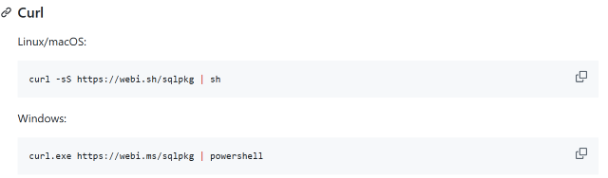
There are several SQLite extensions you can download through a third-party package manager called sqlpkg, which is a CLI utility.
You can download it like so:
installing extensions
Use the sqlpkg install command to install a package like so:
sqlpkg install <package>
This command installs the package to your filesystem, which you then access via filepath when loading extensions.
loading extensions
To load an extension, you need to refer to the filepath of the downloaded SQLite library you want to use. This is the first step:
sqlpkg which <package> #prints out the filepath to the package
Then to load the extensions, use the .load command in SQLite:
.load the_library_filepath
JSON
JSON support is now built into SQLite.
This is how you convert a JSON string into actual JSON data, using the json() function in SQLite. The json() function takes in a string following JSON structure.
SELECT json('{"username": "btholt", "favorites":["Daft Punk", "Radiohead"]}');
--outputs {"username":"btholt","favorites":["Daft Punk","Radiohead"]}
Reading JSON
You can refer to a key in a JSON string by using dot-property notation referring the JSON object itself with $. For example, this is what I mean:
$.city: refers to the "city" key in the JSON object$.city.provinces: refers to the "provinces" key in the nested object of the "city" key.
You can read specific values from a JSON object by using these arrow operators:
->: property access operator, accessing each key->>: value access operator, accessing the value at a key. This should be the final operator in the access chain.
SELECT json('{"username": "btholt", "name": { "first": "Brian" }, "favorites":["Daft Punk", "Radiohead"]}') -> 'name' ->> 'first';
There are also some useful JSON functions that are worth knowing:
json_array_length(json_object, key): Returns the array length of the array under the specified key in the json object, which should be an instance ofjson()orjsonb().
Modifying JSON
You can modify JSON by inserting key-value pairs, deleting key-value pairs, or updating key-value pairs.
-- add a new field
SELECT json_insert('{"username": "btholt", "favorites":["Daft Punk", "Radiohead"]}', '$.city', 'Sacramento');

-- remove a field
SELECT json_remove('{"username": "btholt", "favorites":["Daft Punk", "Radiohead"]}', '$.favorites');

-- update a field
SELECT json_replace('{"username": "btholt", "favorites":["Daft Punk", "Radiohead"]}', '$.username', 'holtbt');
json_insert(json_string, key, value): inserts the key-value pair into the specified json string and returns the new JSON.json_remove(json_string, key): deletes the key from the specified json string and returns the new JSON.json_replace(json_string, key, value): updates the key-value pair from the specified json string and returns the new JSON.
JSONB
JSONB is a more compact form of JSON that is performant yet not human-readable, so it's better suited for database reading and writing with JSON operations, which works the exact same as using normal json.
IMPORTANT
JSONB is only available as of version 3.45 of SQLite.
To declare a string as a JSONB string, just wrap it in a jsonb() function.
Local First
The local first movement is a way to run database operations locally for speed and then sync to the cloud in the background, and pulling from the cloud database whenever local data is lost.
The main tradeoff is while you get high speed, there is more complexity in syncing to the cloud.
LiteStream
Litestream is a way to manually do data backups of your SQLite db to an S3 bucket or anywhere else on the cloud. You can run this with docker.
libSQL
libSQL is a plugin into SQLite that copies and syncs a local SQLite db to a cloud version, maintaining both in sync and provides support for local first development.