wsl
WSl Filesystem
We recommend against working across operating systems with your files, unless you have a specific reason for doing so. For the fastest performance speed, store your files in the WSL file system if you are working in a Linux command line (Ubuntu, OpenSUSE, etc). If you're working in a Windows command line (PowerShell, Command Prompt), store your files in the Windows file system.
For example, when storing your WSL project files:
- Use the Linux file system root directory:
/home/<user name>/Project - Not the Windows file system root directory:
/mnt/c/Users/<user name>/Project$orC:\Users\<user name>\Project
When you see /mnt/ in the file path of a WSL command line, it means that you are working from a mounted drive. So the Windows file system C:\ drive (C:\Users\<user name>\Project) will look like this when mounted in a WSL command line: /mnt/c/Users/<user name>/Project$. It is possible to store your project files on a mounted drive, but your performance speed will improve if you store them directly on the \\wsl$ drive.
Viewing files in the file explorer
You can view the directory where your files are stored by opening the Windows File Explorer from the command line, using:
explorer.exe .
To view all of your available Linux distributions and their root file systems in Windows File explorer, in the address bar enter: \\wsl$
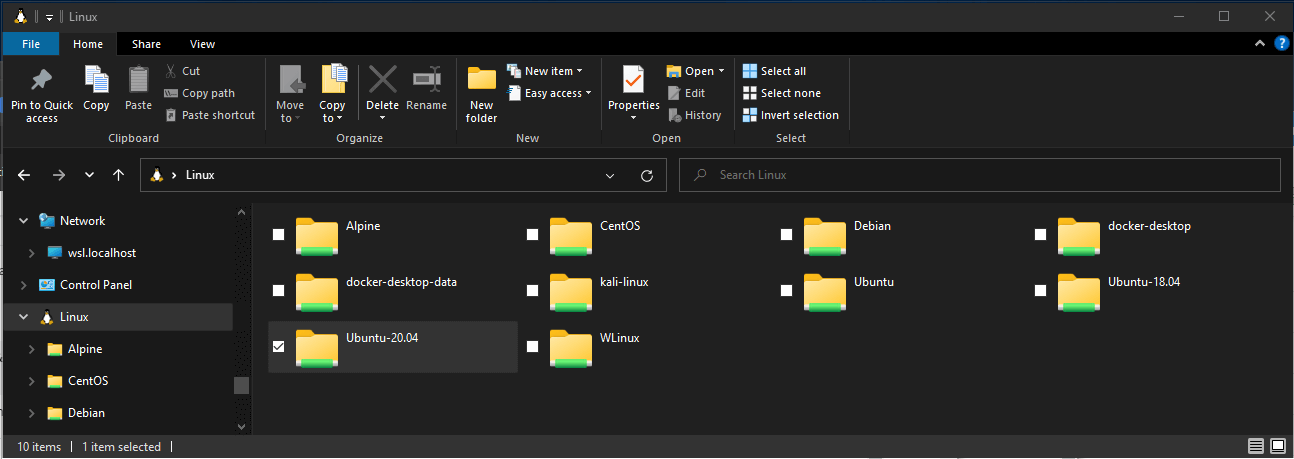
Cross-OS commands
Running WSL from powershell
Run Linux binaries from the Windows Command Prompt (CMD) or PowerShell using wsl <command> (or wsl.exe <command>).
C:\temp> wsl ls -la
<- contents of C:\temp ->
Running windows apps from WSL
WSL can run Windows tools directly from the WSL command line using [tool-name].exe. For example, notepad.exe.
Windows tools must include the file extension, match the file case, and be executable. Non-executables including batch scripts. CMD native commands like dir can be run with cmd.exe /C command.
For example, list the contents of your Windows files system C:\ directory, by entering:
cmd.exe /C dir
Parameters are passed to the Windows binary unmodified. As an example, the following command will open C:\temp\foo.txt in notepad.exe:
notepad.exe "C:\temp\foo.txt"