AWS-cloud-practitioner-course
Cloud fundamentals
Basics of Cloud computing
types of deployments
There are three types of deployments companies can make with software:
- cloud-based deployment: In a cloud-based deployment model, you have the flexibility to migrate your existing resources to the cloud, design and build new applications within the cloud environment, or use a combination of both.
- on-premises deployment: A company own its own infrastructure and hardware and has to setup things like virtualization and cooling. The only benefit is granular control, ownership of data, and low latency.
- hybrid deployment: In a hybrid deployment, cloud-based resources and on-premises infrastructure work together. This approach is ideal for situations where legacy applications must remain on premises due to maintenance preferences or regulatory requirements.
client-server model
The client-server model is the standard way of building applications.
In the client-server model, the client sends requests to the server, which processes the requests and sends back responses. Cloud computing provides scalable server resources that can be accessed over the internet.
6 Benefits of cloud computing
There are 6 main benefits of cloud computing:
- reliability: manage the infrastructure for you. Has global reach and many data centers.
- agility: Easy and fast to set up cloud computing services
- elasticity: scale up or down easily depending on your needs.
- scalability: able to scale up to high demand
- pay-as-you-go : only pay for the services you are using
- global reach: provide services for users around the cloud
Managed vs Unmanaged services
- managed services: AWS takes care of the OS and underlying networking and security. This includes services like lambda and S3, where AWS takes care of most of the configuration and security aspects.
- unmanaged services: These are when AWS just gives you the infrastructure and its up to you to manage the OS and its software, update it, configure its networking and security, etc.
VMs in the cloud, cloud security, etc.
Hypervisors and virtualization
Cloud providers have host machines in a datacenter, where each host machine is a super beefy computer that's always up and running with the sole purpose of hosting VMs (virtual machines).
Each host machine uses its hypervisor component to enable virtualization and effectively isolate resources for each VM in the host and manage allocation of hardware profiles like appropriate amounts of RAM, hard disk storage, etc. to the specifications each VM asks for.
The shared responsibility rule here is applied for unmanaged services like VMs:
- what the developer manages: firewalls and security settings for a VM and maintaining the OS
- what the cloud provider manages: securing the actual hardware the VM runs on and providing the developer with the tool to change network configuration and hardware profile of the VM. Also manage the actual mechanisms behind block storage, encryption, etc.
Elasticity
To scale according to incoming traffic amounts, we have access to both vertical and horizontal scaling:
- vertical scaling: beefing up the hardware profile of an instance to have more storage, RAM, CPU power, etc. so it can handle incoming requests with more computational power
- pro: the simplest scaling tactic and easiest to manage
- con: can be expensive and no high availability since there is a single point of failure if the single beefed up instance goes down.
- horizontal scaling: using a load balancer to distribute incoming traffic across many replicas of the same instance, also ensuring high availability.
- pro: Ensures high availability
- con: difficult to manage a load balancer and requires more setup
A Load balancer is a regional service that distributes many replicas of an instance across many availability zones and distributes traffic amongst all the instances.
It has high availability because it knows when instances or even entire availability zones go down and then where to reroute as a failover. It has a listener component that performs health checks to constantly communicate with instances to know their status, and only distributes incoming traffic to those instances if they pass the health check.
To scale down rather than up, all you do is terminate some replicas and you can create policies to do so to dynamically adjust to changes in traffic or CPU utilization or some threshold like that.
Networking in the cloud
VPCs
VPCs (virtual private clouds) essentially form a LAN for your VMs so that they can have secure and private networking communication and allow you to apply firewall and routing rules.
You can further subdivide instances within a VPC into subnets, which gives you all these capacities:
- control route tables: you can control how instances within a subnet route to other instances in other subnets, controlling cross-subnet communication.
- The default is that all instances within a VPC can communicate with each other, regardless of subnet
- control internet access: You can choose to make subnets public or private to allow or disallow ingress traffic respectively to instances within the VPC.
- control firewall rules: You can control layer 3 and 4 stateful firewall access rules via a security group for the VPC.
VPCs have these constraints:
- constrained to an IP address: VPCs have a public IP address like
10.0.0.0/16 - able to subnet: within a VPC, you can make subnets like
10.0.1.0/24for which VMs within those subnets get a private IP address from available IP addresses from within that subnet range.
You have two ways to apply firewalls in a VPC
- microsegmentation: You can configure layer 3 and 4 stateful firewall rules on individual VM instances in a VPC via microsegmentation, called security groups for a VM
- subnet segmentation: you can apply layer 3 and layer 4 stateless firewall rules to an entire subnet, which adds another layer of firewall defense on top of microsegmentation for instances.
Connecting on-premises data centers to the cloud
If you want to opt for the hybrid approach where you use both cloud providers and physical data centers you own, then there are two ways to connect on-premises to the cloud:
- VPN: use a VPN to encrypt internet traffic from your on-premises data center to the cloud provider services.
- Physical connection to cloud provider: some cloud providers allow you to create a physical WAN connection to their data centers so that you get a fast, secure, and private connection to the cloud without having to go through the internet.
Since the major con of using a VPN is that it's both slow and there is still an attack vector of serving traffic over the internet, if you can get a physical WAN connection to a cloud provider, that's the best option.
AWS offers a physical WAN connection service called Direct Connect that's expensive, but also secure and fast.
Shared responsibility Model
For IaaS and PaaS you have different levels of shared responsibility between the cloud provider and developer.
IaaS shared responsibility model
- what you manage: OS patches, good firewall rules, using encryption and secure networking protocols, securing your application code.
- what the cloud provider manages: retiring old hardware, securing hardware, providing customers with the tools for network configuration and encryption.
PaaS shared responsibility model
- what you manage: securing your application code.
- what the cloud provider manages: the infrastructure, OS, networking
Storage types
There are three types of storage services in cloud computing:
- block storage: attaching a hard drive to a virtual machine or some unmanaged service.
- object storage: storing files in a flat hierarchy in a managed bucket
- file system: A file system hierarchy that multiple devices can share storage for, like a shared volume.
Here's a table comparing all of them
| block storage | object storage | file system | |
|---|---|---|---|
| privacy controls | only the VM you attach block storage to has access to the block storage | All objects in a bucket have access control determined by a bucket policy. The entire world can read objects from a public bucket. | Only specific VMs you allow to read from the same file system volume have access. |
Data Lake (Object storage)
Data lake in cloud computing is object storage for a lot of unstructured data like machine learning or analytics.
Backups
We use object storage to store backups of VMs using some kind of backup software and then we put that object storage bucket storing the backups in a physically separate location to the service.
Storing gigabytes worth of backups that you might never need seems way too expensive right? Actually no:
We can use archive object storage solutions like S3 Glacier to store backups, since odds are we never actually need a backup and instant access is not required at all.
Disaster Recovery
A hybrid solution where most of application traffic goes to on-premises and then we have a routing system in place using something like Route53 to redirect 100% of traffic to on-premises data center, and then when a disaster occurs, we route to the cloud as a failover and start routing traffic to the cloud.
CDNs
CDNs cache requested data from your server and store them in edge locations (data centers around the world with the sole purpose of storing static content) closest to the user who requested the data.
For example, if you have a web server running in the NOVA region, then if someone in India requests static content from your web server, then the latency is high because electricity has to travel dozens of thousands of miles between Virginia and India.
But if there is an edge location close to india, then here is how the logic goes:
- initial request: User in india requests static content from server in Virginia
- cache miss: Edge location in India intercepts request, checks if it has the static content in the cache, it doesn't, so it lets the long route network request from India to Virginia take place.
- cache hit: User in india requests same static content from server in Virginia, Edge location in India intercepts request and sees it's a cache hit, so it immediately returns the cached static content, reducing latency.
Obviously, the CDN caches static data for all people close to the edge location, benefitting everyone in the edge location.
So to recap, here are the main benefits of using a CDN:
- reduced latency for static content: Users requesting static content from your web server will get cached content from edge locations, reducing latency.
- reduced bandwidth and cost: Because requesting cached static content is taken over by edge locations, it reduces the load on the main server, improving performance and lowering costs at the same time.
- extra firewall security: You can have firewall security at edge locations to prevent malicious traffic from reaching the main web server, stopping them at the edge.
DNS
Here's how normal DNS works:
- Provide domain registrar with list of nameservers (the authoritative nameservers) that know the mapping of my owned domain name to the IP address associated with the domain name.
- User issues a DNS query to find the IP address associated with my domain name, DNS request goes up the chain (if cache miss) until the nameservers return the IP.
- User establishes a secure connection with found IP.
Cloud DNS offers several advantages over normal DNS:
- more flexibility: you can point a domain name to a load balancer IP address for automatic scaling or to other IPs.
- more network security and rules: You can attach a firewall to cloud DNS to selectively block ingress traffic based on IP addresses, which is a good DDoS mitigation.
- weighted routing: You can choose a certain percentage of traffic to get forwarded to one IP and the rest to another, able to selectively distribute percentages of traffic to different servers like a manual load balancer.
- health checks and server failover: Cloud DNS performs health checks to see if certain IP addresses are up and responding, and if not, you can configure Cloud DNS to reroute traffic to failover IP addresses like backup instances.
Automation in the cloud (IaC)
Infrastructure as code (IaC) allows us to declaratively design how our cloud infrastructure and services should be set up, like what instances to run, their specs, what to install on them, networking, etc.
Terraform is an automated IaC tool that allows to simply apply Terraform configuration files to spin up cloud resources in a cloud provider.
AWS fundamentals
6 benefits of AWS
- Trade fixed expense for variable expense: By using the AWS Cloud, businesses can transition from fixed investments to variable costs, or in others, using a "pay-as-you-go" model With variable costs, customer expenses are better aligned with actual usage, thus creating more financial flexibility.
- Benefit from massive economies of scale: Like buying a product in bulk can result in lower prices per unit, the vast global infrastructure of AWS can result in lower costs for customers. This means that AWS can be used by many organizations, from small startups to major corporations. Businesses big and small can access advanced technologies that were previously only accessible to large enterprises.
- Stop guessing capacity: With the pay-as-you-go model, AWS also offers elasticity for companies to scale up and down resources as they please, meaning there are no lost dollars since they don't have to pay for capacity. Customers can dynamically scale AWS Cloud resources up or down based on real-time demand. This means businesses can achieve optimal performance without provisioning more or less infrastructure than they need. With the AWS Cloud, the company can conveniently scale resources up or down based on actual demand, eliminating the need to guess future capacity requirements.
- Increase speed and agility: When you don't have to worry about managing infrastructure, you can just focus on the software. With the cloud, businesses can rapidly deploy applications and services, accelerating time to market and facilitating quicker responses to changing business needs and market conditions.
- Stop spending money to run and maintain data centers: The AWS Cloud eliminates the need for businesses to invest in physical data centers. This means customers aren't required to spend time and money on utilities and ongoing maintenance. With AWS taking care of the physical infrastructure of the cloud, customer resources can be reallocated to more strategic initiatives.
- Go global in minutes: Businesses don't need to set up their own infrastructure to expand internationally. AWS provides a robust global infrastructure that customers can use to deploy applications and services across multiple areas in minutes.
AWS pricing models
AWS offers three main pricing models
- pay on demand: pay only for the resources you use and have currently running.
- save when you commit: Commit to long-term usage of a service like 1-3 years to get a discount.
- Pay less by using more: estimate your utilization of resources beforehand and commit to paying for that amount so you don't deal with elastic pricing.
AWS global infrastructure
Global infrastructure typically involves distributing resources across multiple data centers in different geographic locations. By having redundant systems in various locations, global infrastructure enhances fault tolerance. If one component fails, others can take over to minimize downtime and help ensure high availability.
Regions and Availability Zones are designed to provide low-latency, fault-tolerant access to services for users within a given area.
NOTE
Availability zones consist of many data centers that replicate your data for high availability, and then regions replicate availability zones for high reliability.
- Region: A geographic location somewhere in the world (e.g.,
us-east-1in N. Virginia, oreu-west-1in Ireland). Each region is completely isolated from the others. As a developer, you want to pick a region closest to your users to keep latency low. - Availability Zone (AZ): Inside every Region, there are multiple isolated data centers known as Availability Zones (like
us-east-1a,us-east-1b). They have independent power, cooling, and networking. If a rogue backhoe cuts the power grid to one AZ, your application can automatically switch to another AZ in the same region without dropping a single user request!
This is how the hierarchy goes:
regions → availability zones → data centers
Regions
AWS Regions are physical locations around the world that contain groups of data centers. These groups of data centers are called Availability Zones. Each AWS Region consists of a minimum of three physically separate Availability Zones within a geographic area.
AWS has several regions across the globe. Here are some things you should know about regions:
- These regions include many data centers and are located far away from other regions, separated hundreds of miles apart from other regions.
Also, regions have select services, like some regions will have some services and other regions other services.
AWS services can be either global or regional. Here is what changes when you have a regional service as opposed to a global service.
- what changes in regional:
- cost and availability: different services are either available or unavailable in different regions, as well as pricing of those services.
- latency: Also, the farther away an end user is to a region a service is running in, then the more latency they will have.
- what stays the same:
- data access and security: Anybody around the world can access a service you host in a specific region, and the security stays the same.
- amount of data you can store: You can store the same amount of data, it's just that data sometimes has to stay in the same region and can't be moved around due to security reasons.
Availability Zones (AZs)
An Availability Zone consists of one or more data centers with redundant power, networking, and connectivity. AZs are located a few miles apart from each other.
NOTE
It's recommended to distribute your resources across multiple AZs. That way, if one AZ encounters an outage, your business applications will continue to operate without interruption. With this approach of redundancy and resource isolation, AWS customers can achieve the benefits of high availability and fault tolerance.
Local Zones
Local zones are smaller versions of regions intended to provide ultra-low latency for AWS services close to a large metropolitan city.
Although regions are too large to be close to a city like New York, there are local zones closer to cities that allow you to use AWS services in those local zones instead of regions to be as close as possible to your end users to provide the lowest latency.
- pro (low latency): using local zones instead of regions when you're closer to a local zone gives you lower latency for AWS services,.
- con (less services available): Since local zones are pretty small, they have a limited set of AWS services available for use.
Outposts
Outposts implement the hybrid model for cloud infrastructure, where amazon ships host devices running AWS services to your company, and now you have AWS infrastructure on premises.
Wavelength zones
Wavelength zones are AWS services embedded into 5G networks for faster speeds, but it has a limtied set of AWS services available.
AWS shared responsibility model
Since AWS is PAAS, the responsibility model shifts for both the company and AWS.

The customer is responsible for managing the security configurations and patches for the OS running in the cloud, while AWS is only responsible for securing access to the cloud itself.
NOTE
Another way to think of it is that developers are responsible for security "in the cloud" while AWS is responsible for security "of the cloud".
The customer assumes responsibility and management of the guest operating system (including updates and security patches), other associated application software as well as the configuration of the AWS provided security group firewall.
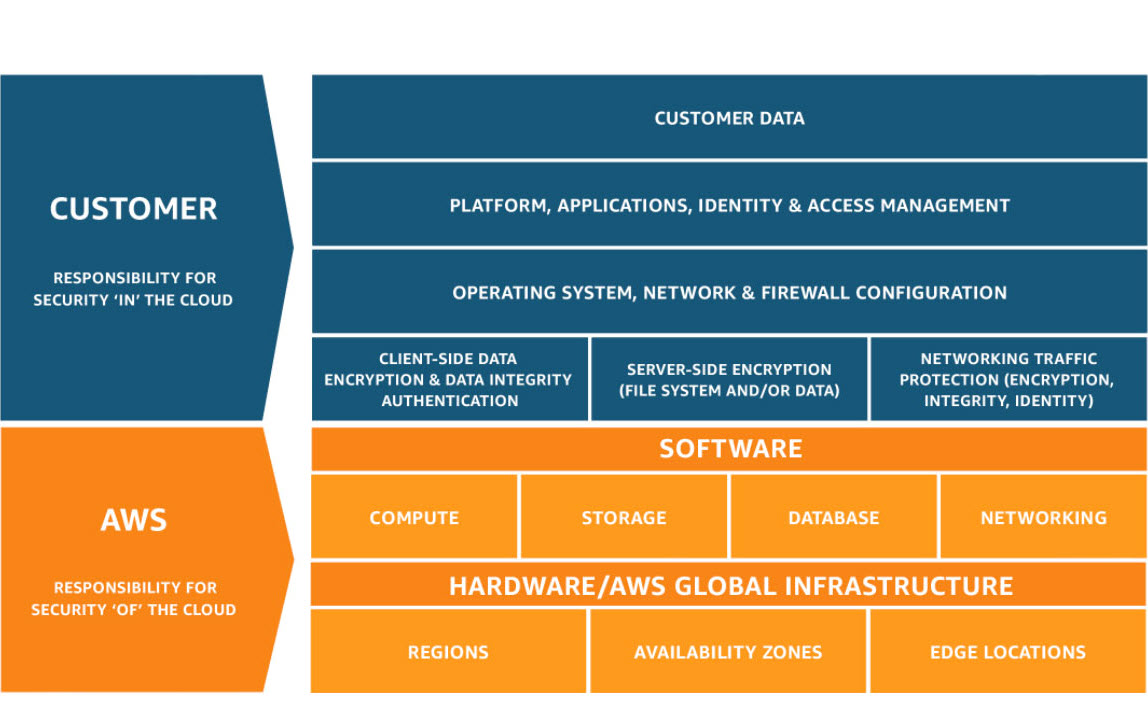 AWS is responsible for protecting the infrastructure that runs all of the services offered in the AWS Cloud. This infrastructure is composed of the hardware, software, networking, and facilities that run AWS Cloud services.
What AWS is responsible for
- physical security of data centers: This includes measures like access controls, surveillance, and environmental controls so that people can't hack the physical hardware
- updating AWS services: Updating software for compute, networking, storage, and database services is also an AWS responsibility.
What the customer is responsible for
- securing app data and OS configuration: Companies migrating to the cloud still have responsibilities such as security configurations and data within their cloud environments.
- updating OS security: the customer must make sure that their OSs are up to date with the latest security patches.
- client-side encryption and customer data
AWS speedups
AWS offers two core services for speeding up traffic to applications and services hosted on AWS:
- global accelerator: routes requests to AWS services through the AWS network for faster speed and multi-region routing options.
- S3 transfer acceleration: Improves data transfer speed of S3 objects via AWS Edge network.
Both of these speed up services significantly, but also cost more.
IAM
Intro
IAM stands for Identity and access management, which are terminology we should learn:
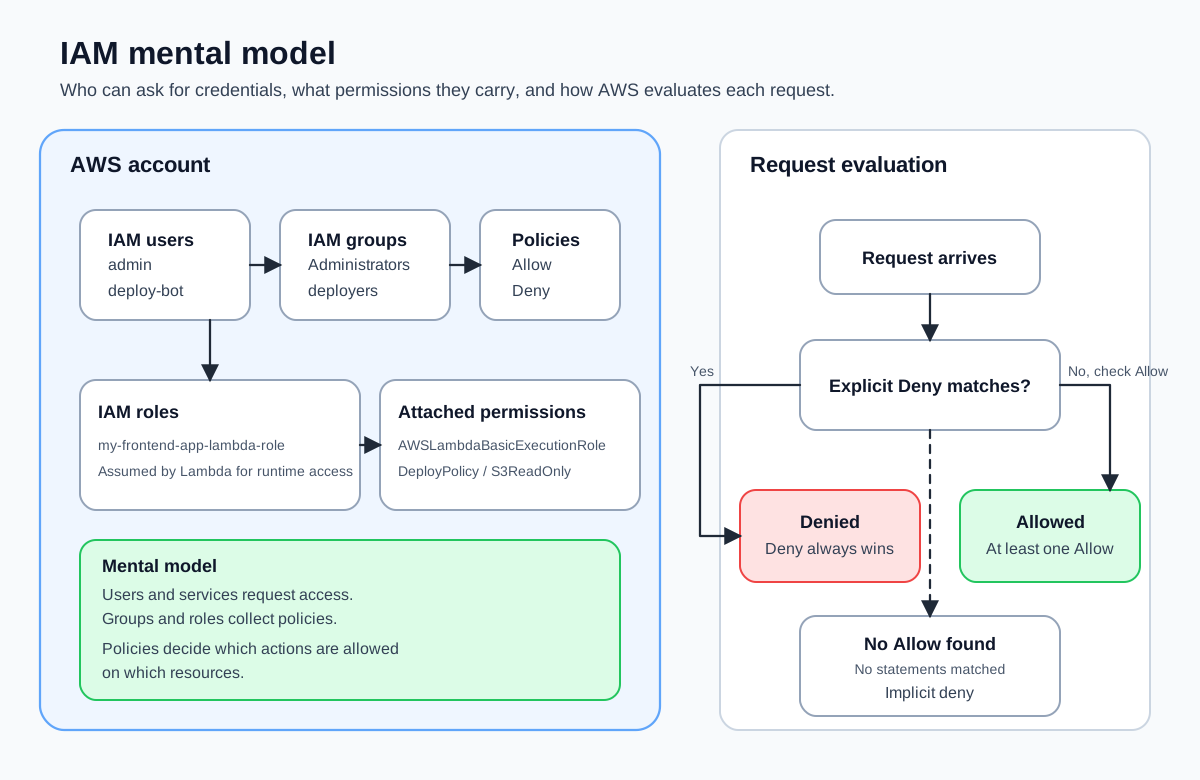
- identity: anyone or anything who has the ability to perform some action on your AWS resources or account, which includes users, user groups, and roles.
- access: The ability to do specific actions on AWS resources and to the account of the root user. Access is managing the permissions that are granted to the identity, allowing them to perform or not perform certain actions.
NOTE
in a nutshell
Basically, you give an identity (some developer you want to give access to your AWS account or an AWS service you want to be able to access other services) access so it can perform scoped, least-privilege actions on your AWS resources securely.
Here are the 4 main components of IAM:
- user: an individual user you want to grant access to your AWS resources
- user group: a group where policies are applied additively to the group as a whole, and you add individual users to the group.
- policies: configuration that allows or disallows permissions for certain resources. You apply policies to users, user groups, or roles so they can gain or lose permissions.
- roles: policies that can be temporarily assumed by anyone, typically an AWS service.
IMPORTANT
All users, user groups, and roles have a maximum of 10 policies you can apply.
| Frontend RBAC | AWS IAM |
|---|---|
| User account | IAM user |
| Role (admin, editor, viewer) | IAM group or role |
| Permission (can_edit_posts) | IAM policy statement |
| Check at request time | IAM evaluation on every API call |
Users and User groups
IAM users and user groups attach a set of policies to individual users you give login access to your AWS account.
There are two ways users registered with IAM can access resources on your AWS account:
- console sign-in: you create an IAM user, which has their own account ID and password. They then login with those credentials to access the AWS console with only the permissions you gave them.
- programmatic access: You can give an IAM user or user group an access key and secret access key for programmatic access.
WARNING
Avoid using the AdministratorAccess managed policy for anything other than your own admin user. Attaching it to a Lambda role or a CI/CD bot means any bug or compromise gives an attacker full control of your AWS account. We cover this in Principle of Least Privilege.
Roles
An IAM role is like a user, but without permanent credentials. Instead of logging in as a role, you assume it temporarily. The role hands back short-lived credentials that expire after a set duration.
Roles allow an identity to temporarily assume a set of permissions/policies. By default, no service in AWS can interact with another AWS service (like lambda executing dynamodb), so for that to occur, you need to give AWS services a role so they can gain access to other services.
Roles are critical for two scenarios:
- AWS services that need permissions. When a Lambda function needs to read from S3 or write to DynamoDB, it assumes a role. The function doesn’t have its own access keys—it borrows permissions from the role every time it runs.
- Cross-account access. A role in Account A can be assumed by a user in Account B. This is how organizations manage access across multiple AWS accounts without sharing credentials.
Policies
Policies are JSON configurations that can allow or disallow a set of permissions. Identities can have multiple policies, so it's important to understand how the final set of permissions are evaluated when multiple policies dealing with the same AWS service access clash with each other.
- Policies are evaluated additively, meaning permission sets add to each other via union.
- However, if one policy allows while another denies the exact same permissions, then the deny overrides the allowing.
So here is the full logic behind permission evaluation:
- By default, no permissions are granted to identities
- Multiple policies are evaluated additively to extend the set of permissions
- Explicit DENYs override explicit ALLOWs.
There are two kinds of policies:
- Identity-based policies attach to users, groups, or roles. They define what that identity can do.
- Resource-based policies attach to a resource (like an S3 bucket). They define who can access that resource.
Here's the simplest possible policy:
{
  "Version": "2012-10-17",
  "Statement": [
    {
      "Effect": "Allow",
      "Action": "s3:GetObject",
      "Resource": "arn:aws:s3:::my-frontend-app-assets/*"
    }
  ]
}
How AWS evaluates policies
Every time you make a request to AWS—clicking a button in the console, running a CLI command, making an SDK call from code—IAM runs an evaluation. The logic is simple but absolute:
-
Start with a default deny. Every request is denied unless something explicitly allows it. A brand-new IAM user with no policies attached can’t do anything.
-
Check for explicit denies. AWS looks at every policy that applies to this request. If any policy has a
"Effect": "Deny"statement that matches the action and resource, the request is denied immediately. No allow can override an explicit deny. -
Check for explicit allows. If no explicit deny was found, AWS checks for a
"Effect": "Allow"statement that matches. If one exists, the request is allowed. -
If nothing allows it, deny. Back to the default: no explicit allow means implicit deny.
The critical takeaway: explicit deny always wins. If one policy says “allow everything on S3” and another says “deny access to this specific bucket,” the deny wins. Always. This is how you create guardrails that can’t be accidentally overridden.
Request comes in
    → Any explicit Deny? → YES → Request DENIED (game over)
    → Any explicit Allow? → YES → Request ALLOWED
    → Neither? → Request DENIED (implicit deny)
TIP
A common mistake is thinking that adding an Allow policy fixes access. If there’s an explicit Deny somewhere—maybe on the user’s group, or an organization-wide policy—no amount of Allow will override it. When debugging access issues, always check for Deny statements first.
Permission boundaries
Permission boundaries limit policies, and you can attach them individually to IAM users.
Think of permission boundaries as a set intersection between two policies. An IAM user with the AWSAdministratorAccess policy attached but the IAMAccess permission boundary, they will only get the intersection between those two permission sets, which just results in the user only having IAMAccess.
EC2
Intro
EC2 stands for Amazon Elastic Compute Cloud, and is the raw compute which provisions an OS for you on a machine with specs you configure and then you do whatever you want with it.
EC2 offers the most granular control over compute in the cloud, since you can install whatever you want and run whatever you want on an EC2 instance.
An unmanaged service like Amazon EC2 requires you to perform all of the necessary security configuration and management tasks. When you deploy an EC2 instance, you are responsible for configuring security, managing the guest operating system (OS), applying updates, and setting up firewalls (security groups).
- customer responsibility: The customer is responsible for configuring, securing, and managing the operating system, networking, and applications on their EC2 instances.
- AWS responsibility: AWS is responsible for securing the physical infrastructure your EC2 instance lives on.
multi-tenancy
An EC2 instance is a single virtual machine, which lives on a physical machine called a host.
Multitenancy is the process of VMs sharing and divvying up compute resources allocated by the host to coexist on the same host while being isolated from other VM instances, which is made possible by the hypervisor component of a host..
The hypervisor is a physical component of a host that enables virtualization, allowing multiple VMs to coexist and share resources on the same physical machine without affecting each others' data. The hypervisor manages CPU, memory, networking and storage of each individual VM to ensure isolation.
Hypervisors come in two types:
- Type 1 (Bare metal): Run directly on hardware, like windows hyper-v (virtualization is baked into the hardware itself, not OS).
- Type 2 (hosted): Runs on an OS, like Ubuntu with VirtualBox (virtualization is made possible by the OS, not the hardware).
EC2 is an unmanaged IaaS
Since EC2 just gives you the bare metal and the OS and raw compute resources, it's classified as IaaS (Infrastructure as a service) and is thus classified as an unmanaged service.
- unmanaged service: a service where users are responsible for configuring the OS, applying security patches, updating software, etc., while AWS is responsible only for the physical machine and infrastructure.
All about EC2
EC2 instance types
When creating an EC2 instance, you need to the choose EC2 instance type (how powerful you want it) and the Amazon Machine Image (AMI), which determines the operating system and software for your instance.
The EC2 hierarchy is divided into instance families, and then each family has several instance types
Here are the instance families:
- general purpose: provide a good balance of compute, memory, and networking resources.
- use cases: web servers, code repositories
- when to use: when you don't know what type of workload you'll have ahead of time
- compute optimized: Ideal for compute-intensive tasks
- use cases: high performance computing, scientific modeling, machine learning
- when to use: when you will have a lot of CPU-bound work to do
- memory optimized: Ideal for memory-intensive tasks, like processing large datasets in memory
- use cases: dataset processing
- when to use: when you have workloads that require you to load lots of data in memory. Memory optimized instances are designed for high-memory workloads and offer the performance needed to handle large volumes of data efficiently, making them the best choice for real-time analytics.
- storage optimized: Ideal for workloads that require high performance for locally stored data
- use cases: I/O on files living on the instance. Storage optimized instances are designed for workloads that require high performance for locally stored data, such as large databases, data warehousing, and I/O-intensive applications.
- when to use: when you have workloads that require high speed and performance with I/O reading and writing of files living on the instance disk. Storage optimized instances are designed for workloads that require high-disk throughput and low-latency access to large datasets. This makes them the best choice for data analytics applications.
- accelerated computing: they use GPU hardware accelerators for high performance on tasks like floating point number calculations and graphics processing
- use cases: graphics processing, floating point number calculations, machine learning
- when to use: when you have workloads that can be made more efficient using a GPU.
EC2 AMIs
An AMI includes the operating system, storage setup, architecture type, permissions for launching, and any extra software that is already installed. You can use one AMI to launch several EC2 instances that all have the same setup.
NOTE
You can think of an AMI as a base docker image to build your EC2 instance from.
AMIs can be used in three ways.
- use custom AMIs: First, you can create your own by building a custom AMI with specific configurations and software tailored to your needs.
- chose AMI presets: Second, you can use pre-configured AWS AMIs, which are set up for common operating systems and software.
- buy third-party AMIs: Lastly, you can purchase AMIs from the AWS Marketplace, where third-party vendors offer specialized software designed for specific use cases.
AMIs provide repeatability through a consistent environment for every new instance. Because configurations are identical and deployments automated, development and testing environments are consistent. This helps when scaling, reduces errors, and streamlines managing large-scale environments.
Creating EC2 instances
To launch an EC2 instance for a web server, here are the required components:
Here are the required components:
- AMI: configure the AMI to define the operating system and software
- instance type: select the instance type to allocate CPU, memory, and storage;
- EBS storage allocation: set up storage options, including the type and size of the EBS volume to mount to your instance.
- VPS: choose the VPS and subnet and hence availability zone your instance will be located in.
- security group: create a security group, which is sort of like a firewall managing all traffic to your instance, creating rules for SSH, HTTP, and HTTPS connections to your instance.
Load balancing, permissions, and instance termination behavior are not required when launching a basic Amazon EC2 web server.
Here are some more details on the optional components:
- User data: you can specify a startup script for the instance to run when booting up.
- termination protection: you can enable termination protection, which puts an extra step and prevents haphazard termination.
Elastic IP addresses
When instances terminate and then start up again, they are automatically assigned a random available public IP address.
If you don't want this behavior and instead want your instance to have a fixed IP address, you can use the elastic IP service, which gives you ownership of a static IP that you can assign to an instance, unchanging.
However, since there are so few public IPv4 addresses in the world, there are some disadvantages to elastic IP:
- cost: Amazon charges you for unused IPs to discourage you from taking the valuable fixed IP addresses.
- scarcity: Since public IPv4 addresses are so scarce, you can only have a few elastic IPs per region and account.
TIP
Instead of using elastic IP, it's better, cheaper, and more robust to attach a DNS record mapping a domain name to your public instance, for which the domain name is unchanging and unaffected by constantly changing IP addresses.
EC2 lifecycle
EC2 pricing is on-demand by default, meaning that you pay for the compute for when the EC2 instance runs, and the EC2 instance runs 24/7 by default.
If you stop or pause the instance you won't pay for the compute anymore because the instance won't be running, but you will still be paying for the EBS volume attached.
- Stopping an instance halts compute charges but storage costs for the hard drive and snapshots still apply.
- Stopping and then starting an instance moves it to a new physical server, which can resolve hardware-related connection issues.
- Rebooting an instance is faster but keeps it on the same physical server.
EC2 snapshots
EC2 snapshots are a way to save the current state of any EC2 instance and anything that is installed so that you can reboot that instance again and again without having to manually reinstall the same packages and the same code and the same configuration.
Here are the steps to create a snapshot from another EC2 instance and then create an isntance from that snapshot:
- Go to actions → image and templates → create image to create a reusable AMI tempalte.

- When creating an image, make sure to check the reboot instance checkbox option because otherwise, AWS will attempt to take a snapshot of the instance while it is still running. And that may have unintended consequences.
- Once the AMI is created, you can click on it and then click on the launch instance from AMI button to create an EC2 instance from a snapshot of another instance.

NOTE
It's important to reboot the instance during image creation to avoid issues with snapshotting a running hard drive.
Here's a look forward as to how EC2 snapshots can help with load balancing and auto-scaling groups:
- You can launch new instances from the AMI in different availability zones and use the same security group to maintain consistent settings.
- Cloning instances this way helps handle traffic spikes by scaling horizontally or restoring a server to a previous state if needed.
EC2 pricing
With EC2, you have many different plans for pricing:
- on-demand: pay-as-you-go, where you only pay for the hours that the EC2 instance is running. Pay only for the compute capacity you consume with no upfront payments or long-term commitments required.
- capacity reservations: With Amazon EC2 Capacity Reservations, you reserve compute capacity in a specific Availability Zone for critical workloads. Reservations are charged at the On-Demand rate, whether used or not. You only pay for the instances you run. This is ideal for strict capacity requirements for current or future business-critical workloads.
- use case: Critical workloads with strict capacity requirements
- savings plans: you pay less for EC2 given that you commit to using it (Amazon locks you in). Save up to 72 percent across a variety of instance types and services by committing to a consistent usage level for 1 or 3 years. Payment options include All upfront, Partial upfront, or No upfront.
- use case: predictable workloads where you know the forecasted capacity ahead of time.
- reserved instances: Get a savings of up to 75 percent by committing to a 1-year or 3-year term for predictable workloads using specific instance families and AWS Regions.
- RIs offer up to 75 percent savings over On-Demand pricing by applying discounts across instance sizes and multiple Availability Zones within a Region.
- When you purchase a Reserved Instance (RI), AWS automatically applies the discount to other instance sizes within the same family based on the instance size footprint.
- It also applies the discount across multiple Availability Zones for enhanced resource distribution and fault tolerance.
- use case: Steady-state workloads with predictable usage
- spot instances: Bid on spare compute capacity at up to 90 percent off the On-Demand price, with the flexibility to be interrupted when AWS reclaims the instance.
- use case: for workloads that can be interrupted and restarted, like cron jobs. Not ideal for web servers or other long-running processes.
- dedicated hosts: Reserve an entire physical server for your exclusive use. This option offers full control and is ideal for workloads with strict security or licensing needs.
- dedicated instances: Pay for instances running on hardware dedicated solely to your account. This option provides isolation from other AWS customers
Dedicated hosts vs dedicated instances
- dedicated hosts: when you reserve an entire block of physical machines for your EC2 instances to run on
- dedicated server: when you reserve a single physical machine for your EC2 instance to run on.

The key difference is that Dedicated Instances provide isolation without you choosing which physical server they run on. Dedicated Hosts give you an entire physical server for exclusive use, providing complete control over instance placement and resource allocation.
A main gotcha
EC2 is the most expensive service in AWS because you're essentially renting a slice of infrastructure from AWS, infrastructure everybody else wants to use as well.
You only pay for an EC2 instance if it is up and running, but even when you stop an instance, you still pay for the block storage volume attached to the instance.
VPCs
Intro
VPCs (Virtual private clouds) allow you to create a logically isolated section of the AWS cloud where you can launch and manage regional AWS resources in a customized network environment.

- You should think of VPCs as an LAN with a switch, where devices within the same VPC don't need to traverse the internet in order to talk with each other.
- You can define IP address ranges, subnets, route tables, stateful firewalls via security groups and stateless firewalls via NACLs to protect entire subnets.
NOTE
In other words, it's a simple way to group EC2 instances together and then apply the same network settings to all of them.
VPCs span across multiple availability zones, and then have subnets inside of one where you a subnet can only be attached to one availability zone at a time.
Because subnets are one-to-one with availability zones, you can decide to make a subnet public (allow internet connection) or private (only allow intra-VPC connection).
Here are the core components of a VPC:
- subnets: a grouping of instances within a single availability zone. A subnet always has two important networking components that decide routing for ingress and egress traffic:
- route table: a configuration of routing rules that determine cross-subnet communication rules and egress internet traffic rules (if the subnet is public).
- NACL: a stateless firewall that controls ingress and egress traffic rules for the entire subnet.
- individual instances: Each individual instance has a security group (stateful firewall) to determine ingress and egress rules for that individual instance.
TIP
The largest CIDR address subnet mask a VPC can have is /16
complete example
Walk through a complete networking example with VPCs, subnets, and individual instances.
- VPCs: Suppose your VPC has the CIDR block
10.0.0.0/16. This means your VPC can have IP addresses from10.0.0.0to10.0.255.255(about 65,534 usable addresses). - Subnets: Within this VPC, you create two subnets:
- A public subnet with CIDR
10.0.1.0/24(addresses10.0.1.0to10.0.1.255), which is connected to an Internet Gateway allowing internet access. - A private subnet with CIDR
10.0.2.0/24(addresses10.0.2.0to10.0.2.255), which has no direct internet access
- A public subnet with CIDR
- Instances:
- An EC2 instance in the public subnet might have a private IP like
10.0.1.10and also be assigned a public IP (e.g., Elastic IP) so it can communicate over the internet. - An EC2 instance in the private subnet might have a private IP like
10.0.2.10but no public IP, so it can only communicate within the VPC or through a NAT gateway if configured.
- An EC2 instance in the public subnet might have a private IP like
complete example 2

Subnets, internet gateway, and NAT gateway
All instances can communicate with all other instances within the same VPC, but to manage stuff like internet connection or communicating with other VPCs, we group instances inside a VPC into subnets, either public or private to grant them access to the internet or not.
- public subnet: A subnet within a VPC where instances can communicate with the internet by attaching an internet gateway to the public subnet.
- private subnet: A subnet within a VPC where instances cannot communicate outside the VPC.
An internet gateway is a component that enables communication between resources in your VPC and the internet, allowing EC2 instances within a VPC to send stateful ingress and egress traffic to the internet.
To enable an internet gateway for your VPC, you should attach it to a specific subnet, which makes that subnet a public subnet, and then you will be granted a public IP address and the route table will become an edge router for your VPC, taking on the public IP address and making it the default gateway.
Here are general rules of subnets:
- a way to have private subnets send egress traffic to the internet: To allow instances within a private subnet to perform egress traffic to make internet traffic (but not allow ingress traffic), you can add a NAT gateway so that instances within a private subnet can still make egress internet traffic.
- all devices within the same VPC can communicate with each other: Even if devices are in different subnets, they can all communicate with each other if they are in the same VPC, but they have to go through two layers of defense:
- the route table
- the NACL for the subnet
Each subnet will be placed in an availability zone, and you can create multiple subnets and thus have them be assigned to multiple availability zones, ensuring high availability for your instances.

For example, if you have two public subnets, you can place them in two different AZs.
This arrangement allows resources in those subnets to remain operational even if one AZ experiences issues.
Security groups and NACLs
When creating EC2 instances, you can assign security groups, which creates a stateful firewall for the instance and you are able to control inbound and outbound traffic via layer 3 and 4 firewall access control list rules.
NOTE
In AWS EC2, up to five security groups can be applied to a single network interface of an instance.
Each security group defines inbound and outbound rules, and the instance follows the combined rules of all assigned security groups.
- This allows for flexible access control, enabling different rules for different use cases without modifying a single security group repeatedly.
- If multiple security groups are assigned, AWS evaluates all rules together and allows traffic that matches any of the permitted rules.
NACLs are basically the same thing as security groups but they are a firewall for entire subnets and you write the layer 3 and 4 firewall access control list rules yourself, starting from scratch with a stateless firewall.
You must set both security groups and NACLs when configuring a VPC:
- individual instances: require a security group to be attached to them
- subnets: require a NACL to be applied to them.
However, there are differences between security groups and NACLs:
- security groups use a stateful firewall (always allows network responses back from an allowed request) while NACLs use a stateless firewall (needs explicit rules for both ingress and egress traffic)
- NACLs are firewalls for entire subnets (less fine-grained) while security groups are firewalls for individual ec2 instances (more fine-grained)
Default VPC
In the default VPC that AWS creates for you, it includes a private IP range for your network, but to allow internet traffic, you need to have an internet gateway attached and assign public IP addresses to your instances or resources that need internet access.
The default VPC is set up to support this, but the public IPs are not automatically assigned to the VPC's gateway itself.
- Instead, your instances within the VPC can have public IPs to communicate over the internet.
- This setup helps keep your internal network private while enabling controlled internet access where needed.
Terminology summary
- VPC: Virtual private cloud, acting as an LAN for EC2 instances facilitating communication between instances within the VPC without internet traffic.
- public subnet: A logically-segmented subnet within a VPC that allows both ingress and egress traffic.
- internet gateway: a stateful firewall that allows both ingress and egress traffic, and is attached to a subnet to make it a public subnet.
- NACL: stateless firewalls for an entire subnet.
- private subnet: A logically-segmented subnet within a VPC that forbids both egress and ingress traffic.
- NAT gateway: a stateful firewall dedicated that can be attached to private subnets to let them perform stateful egress traffic to the internet but forbid all ingress traffic.
- use case: business computers should be in a private subnet so it forbids ingress traffic, but egress traffic should be allowed for stuff like web querying.
- security group: stateful firewall attached to individual EC2 instances.
Load balancing
With EC2, you have access to two types of scaling:
- vertically scaling: beefing up the specs (RAM, storage) of a VM so your application can handle more load.
- horizontally scaling: distributing compute across multiple VM instances so your application can handle more traffic.
We can also use load balancing EC2 instances as a way to horizontally scale our application, which we can do with the help of two services:
- EC2 auto scaling: automatically adds or removes EC2 instances based on certain conditions, like traffic, always scaling to accommodate load.
- Elastic Load Balancer: service used to distribute load evenly across available instances, to make sure no single instance reaches max capacity and fails.
There are three types of load balancers:
- application load balancer: allows you to programmatically inspect network traffic and decide how to intercept those requests and distribute them across instances. It only routes layer 7 traffic like HTTP or HTTPS
- feature 1 (programmatic routing): offers advanced rules and programmatic decision-making for choosing where to route ingress HTTP traffic
- feature 2 (SSL termination): capable of handling encrypted HTTPS ingress traffic, decrypting it, and then forwarding that decrypted data to the individual instances in the target group.
- when to use: for horizontally scaling most HTTP-based apps like web servers
- network load balancer: A lean, simple load balancer with limited configuration options, and has a fixed IP address. It routes at the layer 4 level, load balancing different protocols like TCP, UDP, SSH, etc.
- use case: Ideal for non-HTTP traffic and when you have a fixed number of instances you want to distribute traffic to and you don't want to implement auto-scaling.
- when to use: for most non-HTTP based apps like cron jobs running some process.
- gateway load balancer: enterprise-specific use case load balancer for directing traffic towards non-AWS infrastructure.
Both load balancer types have two important components:
- target group: the group of servers to register for traffic distribution, either created by selecting individual instances, selecting by IP range, or other methods.
- All a target group does is collect instances together to prepare for load balancing. It doesn't do any traffic distribution itself, it only sets up the infrastructure.
- load balancer: The actual load balancer component is what distributes traffic equally across the instances and dynamically changes how much traffic gets sent to each subnet/instance by performing periodic health checks to check the status of instances.
- listener: the listener component of a load balancer is the actual brain behind how to route, redirect, and distribute traffic to the traffic group.

Creating a network load balancer
A network load balancer's main use case is to equally distribute traffic across multiple subnets and thus instances within the same VPC, without any auto-scaling.
how a load balancer works
Here's the basic flow of how a network load balancer works:

- The network load balancer uses its listener components to install nodes inside each availability zone it targets.
- The network load balancer receives traffic
- It distributes the traffic equally across its target availability zones to the NICs of the nodes in those availability zones
- Within the subnet, the nodes equally distribute traffic across the registered targets in the target group within that availability zone
If an availability zone goes down, so does the node within that availability zone, therefore the NLB removes the node within that AZ from its DNS and thus can't direct traffic to it anymore.
how to create a NLB
The general steps for creating a network load balancer are:
- Create a target group
- Create a network load balancer that lives in the same VPC as the target group and chooses the target group you just created as the target group to target for traffic distribution.
creating the target group
Here are the general steps:
- Create at least two instances which are complete copies of each other and are in the same VPC, have the same user data scripts, but live in different availability zones.

- Create a target group within the EC2 console and specify that you want to target instances for a certain VPC.

- Select the exact instances in the VPC you want to include in the target group
create the network load balancer
- Begin creation of the network load balancer, make it internet-facing, which assigns it a public IPv4 address.

- Select the VPC to put the load balancer in and then which availability zones the load balancer should place listeners in and thus distribute traffic to.
- VPC: only the VPCs with an internet gateway attached to them are going to be available for selection for internet-facing load balancers.
- subnets: choose the subnet that you want to place the load balancer listener component in because it will only route traffic to these subnets.

- Add a security group for the load balancer. Make sure that it is open for ingress form any source to HTTP 80
Elasticity, Auto-scaling groups, and load balancers
Elasticity refers to the concept of growing or shrinking infrastructure resources dynamically to respond to changes in demand.
There are three main components to an elasticity service:
- metric observability: Elasticity observes a certain metric's level to decide whether to scale in or scale out, such as CPU utilization of an instance.
- scaling out: The elastic metric surpassing some threshold level should add more instances to meet performance requirements.
- scaling in: The elastic metric dipping below some threshold level should remove instances to reduce costs during times of low usage.
In AWS, an auto-scaling group implements an elastic service and lets you choose a specific EC2 instance template for automatic horizontal scaling and then configuring important components like:
- network connectivity details: Which VPC and subnet to put horizontal scaling instances in.
- scaling policy: criteria threshold for which auto-scaling should kick in after, like a certain amount of CPU utilization for an instance or a certain amount of ingress or egress network traffic threshold is crossed.
- number of instances: You can choose a minimum and maximum number of instances you want for scaling, and then choose a preferred amount of instances to run for horizontal traffic.
scaling policy
The scaling policy lets you define a threshold for your auto-scaling group that if crossed, then new instances are added and if below the threshold, instances are removed to accomodate the current level of the certain metric in comparison to the threshold.
For example, creating a scaling policy where we set the threshold of CPU utilization to 50% for an instance means the following:
- If CPU utilization is above 50%, then scale up.
- If CPU utilization is below 50%, then scale down to normal.
wiring up an auto-scaling group
Here are the high-level steps to creating an auto-scaling elastic load balancer architecture:
- Create an auto-scaling group
- Create an elastic load balancer and connect it to the auto-scaling group so that new instance replicas are added to the target group.
- Create a scaling policy to configure the contract for scaling in and out
Creating application load balancer to distribute traffic
Here is how an application load balancer works:
- Clients make requests to your application.
- The listeners in your load balancer receive requests matching the protocol and port that you configure.
- The receiving listener evaluates the incoming request against the rules you specify, and if applicable, routes the request to the appropriate target group. You can use an HTTPS listener to offload the work of TLS encryption and decryption to your load balancer.
- Healthy targets in one or more target groups receive traffic based on the load balancing algorithm, and the routing rules you specify in the listener.
part 1: create an application load balancer
Here are the steps to create an application load balancer:
- Select whether the application load balancer should be Internet-facing or internal.
- If you are trying to load balance traffic to web servers and distribute traffic that way then you want it to be Internet-facing because it would use a layer 7 protocol like HTTP or HTTPS.

- Select the VPC and the availability zones for which instances are going to be placed and that the load balancer should have access to.

- Create a security group that handles HTTP or HTTPS traffic and allows all ingress traffic and then you can decide whatever for egress traffic.

- Define which port and layer 7 protocol the listener will distribute traffic to for each instance in the target group and then create or choose a target group.

part 2: create a target group and register targets
Here are the steps to create a target group:
- Select target type and traffic origin destination:
- traffic type: You first want to select whether you're load balancing to a Lambda function, another application load balancer, IP addresses, or instances. Most of the time you will be load balancing to EC2 instances so that's what you want the target type to be.
- traffic origin destination: Then you will need to select the origin that the instances will be available on and for the load balancer to distribute traffic to. 4

- VPC of targets: Then you should select the same VPC that the load balancer is in.
- Select instances: Select the instances to add to the target group, they should be in the same availability zones you selected that the load balancer will install its listeners to.

- Create the target group
part 3: register the target group for targeting
- Back in the ALB creation page, select the target group you want the load balancer to direct traffic to.

- Create the load balancer
Creating an application load balancer with auto-scaling and launch templates
Here's some terminology:
- launch template: a reusable template to create individual EC2 instances or use in an auto-scaling group
- launch configuration: a reusable template that can only be used for an auto-scaling group, not for creating individual instances.
Here are the steps to create an auto-scaling group.
- Create an auto scaling group for your instance.
- First create a launch template that basically configures the EC2 instance type and specs for the blueprint of the EC2 instances the scaler should add for horizontal scaling.
- Then select the launch template.
- Choose the VPC and within that the subnets the scaling should happen in (which specific VPC and subnet should new automatically scaled instance replicas be added to?)
- Associate an elastic load balancer with the auto-scaling group you just created, so that new instances are automatically added into the load balancer's target group.
The next steps are to associate an elastic load balancer with the auto-scaling group. In this case, we'll walk through how to create a new elastic load balancer:
- Choose whether the load balancer should be internet facing (able to handle egress and ingress traffic) or internal (no connection to internet)
- Create listeners (which port and which protocol to listen for network traffic) that redirect and distribute traffic to an autoscaling group.
- Create a scaling policy that is a criteria threshold for which auto-scaling should kick in after, like a certain amount of CPU utilization for an instance or a certain amount of ingress or egress network traffic threshold is crossed.
creating the application load balancer
- Once you create the target group, go to actions -> associate with load balancer to create a load balancer for this target group.

- Choose load balancer type: Select whether the load balancer should be internet facing or internal.
- Choose internet facing if you are distributing traffic across web servers that people can make inbound internet traffic to. If your load balancer is internet facing, it must have a public IPV4 address.
- Choose internal if you are making a load balancer for a database.
- Choose the VPC and availability zones the NLB should be placed in.
- This should be the same VPC the instances you're trying to distribute traffic to are located in.
- You should choose the same availability zones the target instances will run in, as specified in the launch template.
- Attach a security group to the load balancer for stateful firewall security for the load balancer.
- The most common use case is to use the exact same security group that you use for the instances in the target group so that everything has the same network settings.
- Choose a routing action for a target group: You have the choice to either forward traffic to the routing group, forward traffic to some other URL, or send back a fixed HTTP response you craft.
Load balancer + Route 53
- Go to the Load Balancer Details page and then copy the DNS name of the load balancer. It should be an A record.

- For a specific domain you have registered in route 53, see [[#Domain names with Route 53]], click on the hosted zone details and then add a DNS record, (A record for a load balancer) with the value being the domain of the load balancer, make sure to toggle the Alias switch on, since you want to send traffic to an AWS service with an IP address rather than just any old IP address

- Create a
wwwalias for the domain by creating a new record but having the record name (the subdomain) bewww, point it to the load balancer DNS A record, alias to the load balancer.

Storage on EC2 instances
EBS
EBS (Elastic block storage) is a volume mount for EC2 that acts as persistent hard drive storage for the instance, allowing instances to store file data across terminations.
NOTE
EBS is the default storage option for most AMIs.
Since EC2 is regional, EBS is also regional, and a volume must always be in the same availability zone as the instance you want to attach it to.
These are the benefits of EBS:
- data persistence: Allow an EC2 instance to store file data across terminations, booting up data from the volume mount.
- encryption and durability: EBS provides file-encryption for security and snapshots of volume storage so that data can be restored at any time.
- performance: EBS is fast.
EBS has two core primitives:
- volumes: these are individual hard drives you can attach to instances and they store data.
- snapshots: these are snapshots of an EBS volume at a point in time, capturing all the data in the hard drive at that point.
NOTE
EBS vs AMI
An EBS snapshot is a backup of just the hard drive (volume) attached to your EC2 instance—it captures the data on that specific drive at a point in time. An AMI (Amazon Machine Image), on the other hand, includes everything needed to launch a new instance: the EBS snapshot plus the configuration of the instance like the operating system, settings, and software.
- An EBS snapshot is like a snapshot of your data drive
- An AMI is a complete image of your server ready to be relaunched.
Here are the core properties of EBS:
- able to change storage capacity: You can either change storage capacity manually or even dynamically if needed.
- snapshots to freeze instance in time: Like a docker container, you can make snapshots of an EC2 instance to save all downloaded software, configuration, and files on that instance and create new instances from that snapshot.
- multi-attach: If multiple instances need to share files between them, then you can share the same EBS volume and mount the volume to all instances so they effectively use the same hard drive.
- con 1: this option is only available for some instance types, not all.
- con 2: you have to write your own file lock logic to prevent two instances from writing over the same file simultaneously.
Since EBS is the actual physical storage on a host device provisioned for VMs via the hypervisor, you have these hardware choices which determine the storage performance of EBS:
- general purpose SSD (gp3 and gp2): Uses an SSD for EBS. This is the best for general purpose storage.
- Always choose gp3 over gp2, since gp3 is newer, has better performance, and is cheaper.
- use case: general purpose
- Provisioned IOPS SSD (io1 and io2): Uses a high performance SSD that is optimized for even faster reads/writes, it has more IOPS than general purpose SSD.
- Although it has more IOPS and is thus faster, it is also more expensive.
- use case: applications that need low latency and high performance.
- HDD: uses a hard disk drive, which has more storage but slower performance for reads/writes.
- use case: infrequently accessed archive storage that you want absolutely zero data loss for, but low latency is not a requirement.
NOTE
IOPS stands for inputs and outputs per second, so the higher the IOPS for a volume type, the faster the read/write operations are for that storage.
EC2 instance store
Although EBS is more widely used and is the default block storage option for most AMIs, EC2 instance store is an alternative block storage option, which is the physical hard drive on the host machine that contains the EC2 VM, where storage is managed via virtualization.
So let's recap the difference between EC2 instance store and EBS:
- EBS: a physically separate managed block storage volume that you mount to an instance or mount to many instances at once.
- pro: Having the volume be physically separate from a host machine a VM is running in allows you to use EBS for snapshots to restore EC2 instance state and also perform multi-attach operations where several instances can have the same EBS volume attached and thus share the same hard drive effectively.
- EC2 instance store: the physical hard drive on the host machine where the VM is running. The shared storage is managed via virtualization so the VM gets only the storage applicable to it.
EFS and FSx
EFS (elastic filesystem service) is a pre-formatted filesystem storage that lives in a VPC that multiple different services can use (not just EC2) and is built for scale.
This means whatever instances and other AWS services you attach an EFS volume to, they will be able to access the same files, sort of like S3 except EFS has filesystem hierarchy, so long as they are in the same VPC.
NOTE
In EFS, multi-attach to multiple different services and instances is the core feature and reason why you would want to use a shared filesystem service like EFS
In summary, here are the key properties of EFS:
- lives in a VPC: When creating an EFS volume, you choose which VPC it will live in, meaning only instances and other services that live in that VPC can use the same EFS volume.
- built for multi-attach: Multiple different services and instances can share the same mounted EFS volume, which is the point.
- scale: EFS automatically scales the filesystem storage size
FSx is the same thing as EFS but specifically purposed towards high performance file access workloads.
CloudFront and Route53
Creating DNS records
Route53 allows you to create DNS records where you can buy a domain through route53 or prove that you own one, and then connect that domain via DNS records.
AWS provides a special capability that instead of supplying a target IPv4 address for A records, you can map a domain name to a specific AWS service and provide custom routing instructions.
Domain names with Route 53
Buying a domain name
- Go to Route 53 then to registered domains and then buy a domain, the
.clickones are $3/year.
Connecting a domain name
- Create a hosted zone and type in your domain name

2.After you have finished creating the hosted zone, click on it to see its details, and then copy over its nameservers into your domain provider DNS configuration for that domain.

Now to actually connect your domain to an IP address, you have two options:
- A record: an external IP address to route traffic to.
- aliased A record: Use this if you want to route traffic to an AWS service that has an IP address.
load balancer connection example
To point the domain towards an application load balancer you have on AWS, follow these steps:
- click on the hosted zone details and then toggle the Alias switch on to signal that you want to reference an AWS resource with an IP address by the specific service instead of the IP address
- Select the specific AWS resource that exposes an A record that you want to route traffic to.
- Create the record, and optionally create extra records with subdomains that fill the record name value with
wwworapp, etc. and alias it to the same AWS resource.

CDNs with CloudFront
CDNs cache requested data from your server and store them in edge locations (data centers around the world with the sole purpose of storing static content) closest to the user who requested the data.
CloudFront uses AWS's edge locations to decide what resources and requests to cache and which edge locations to store the cached data in. These two control surfaces have specific terminology:
- content origins: Content origins are the specific AWS service you want to cache content for, caching requests from a region-based service like Lambda, S3, EC2, or a load balancer and then distributing the cache globally via edge locations.
- cache policies: You can create cache policies to decide how content gets cached and connect different caching policies to different distribution patterns.
NOTE
The great thing about cloudfront is that it works with any AWS service that produces a public IP, like lambda, S3, load balancers, route 53, etc. so you can not only cache bucket objects but also server requests.
Creating a cloudfront distribution
- select the origin domain or content origin: The origin domain is syntactic sugar for the specific IP address of an AWS service you want to connect to, like a specific S3 bucket or load balancer. The CDN created will cache data returned from requesting that AWS service.
- choose cache policies
The result is a domain name that cloudfront provides that basically copies requests from the content origin to all edge locations around the world.
SSL with ACM
The Amazon Certificate Manager service allows you to create SSL certificates and attach them to AWS services or external instances.
SSL with EC2
Here is an example of creating an SSL certificate for a domain:
- Create A records for the domain you own and pointing that towards the public IPV4 address of the instance, do that for all additional subdomains as well.

- Go to ACM and answer these questions:
- domains and subdomains: The domains and subdomains you own and want to create the certificate for.
- allow export: If disabled, then you can only attach SSL certificates to AWS services like EC2, a hosted zone, or a load balancer.
- key algorithm: which cryptographic algorithm to use to create the public and private key pair.

- Add the records to Route 53, and if that doesn't work, then go to the next step:
- Install the
certbotCLI tool to create SSL certificates, more information here:
SSL with cloudfront
You can also enable SSL with cloudfront by using the Amazon Certificate Manager (ACM) service to create a certificate and then using that certificate for SSL encryption with a cloudfront record.
- Create a certificate with ACM by certifying you own a domain via DNS records
- Create a cloudfront CDN using the verified domain and attach the SSL certificate in the settings
S3
Intro
S3 is a hosted object storage system with 99.999999% durability, which means data loss or corruption is extremely unlikely.
- object storage: storage of files with no filesystem, unlimited storage capacity.
- block storage: hard disk storage which you can boot up OSs from
Here are the main properties of S3:
- hosted object storage: S3 consists of buckets, which is a singular level filesystem, where all files are grouped at the same level.
- You can mock a filesystem using object keys, which simulate folders, but in reality they are not actual folders. To have a real filesystem, you need block storage.
- high durability: S3 has eleven 9s of durability, meaning that for every billion objects you store in S3, only one gets corrupted or lost. This means data loss is extremely improbable.
- granular access control: you have control over who can access the bucket and even access to individual objects within the bucket
- eventual data consistency: putting new objects in S3 is immediate, but object modifications like updating or deleting is eventually consistent, meaning users might get a stale version.
Storage classes
AWS offers different storage classes so you can strategically choose your pricing tier according to the file-access patterns you foresee with S3 object storage.
There are three categories of storage classes:
- frequent access: for objects that are frequently accessed every few seconds or minutes, and instant access should be required (no cold starts). This offers the fastest speed but is the most expensive.
- infrequent access: for objects that are accessed infrequently, you can get a discount for objects that you don't use that just sit in your storage but then you pay a retrieval cost for each time you retrieve the item.
- archive: for objects that are almost never accessed, but has to live in storage. In this storage class category, instant access is not always possible, and you may have to wait for a few hours before being able to retrieve the file. The cost savings are high but come with a steep retrieval cost and slow access time.
Basically these are the advantages / disadvantages for each category:
| Storage class category | Description | Use case |
|---|---|---|
| Frequent access | highest flexibility but most expensive | For objects that need to be frequently accessed |
| infrequent access | cost savings but retrieval cost for any objects you retrieve | For objects that are infrequently accessed |
| archive | The cost savings are high but come with a steep retrieval cost and slow access time. | For objects that are almost never accessed |
Intelligent tiering
Intelligent tiering is a type of storage class that moves an object into the frequent access, infrequent access, or archive storage class category depending on the type of file it is.
- pro: optimizes storage for the type of file and file access pattern.
- con: costs more than standard, however.
Bucket networking
Each S3 bucket has a unique name and thus has a unique DNS name. You can configure network settings for the bucket to expose objects within that bucket to the public or only to authenticated individuals.
Public buckets
To make a bucket public and therefore all of its objects publicly accessible, you must do these two steps:
- Uncheck the "Block all public access" option when creating the bucket.
- Create a bucket policy that allows anybody to read files in the bucket, which is specified by the
"s3:GetObject"and"s3:GetObjectVersion"permissions.
Advanced S3 features
Versioning
Bucket versioning allows you to store multiple versions of a file so you can do rollbacks
Lifecycle management
Allows you to set rules to transition files between storage classes.
For example, you can set a rule to transition a file into an infrequent access storage class if it hasn't been accessed within the last 30 days.
Replication
Much like database sharding, you can replicate buckets as a realtime copy of a bucket, ensuring high availability and durability. You can also replicate objects across regions.
Object-lock
When you turn on object-lock, it allows you to freeze objects and prevent them from being deleted or modified.
Bucket-level encryption
You can encrypt bucket data automatically so that if a bucket somehow gets leaked, the data can't be read without the decryption key
Databases
AWS Database as a Service
Database services are regional and most of them have to be scoped into a specific subnet within a specific VPC because they run on EC2 instances behind the scenes.
There are three types of managed cloud database services AWS offers:
- RDS: relational DB for all flavors of SQL. Regional, so you must scope it to a specific subnet.
- Elasticache: caching DB like Redis. It is Regional, so you must scope it to a specific subnet.
- DynamoDB: AWS custom NoSQL DB that can be regional or global, but the actual database is managed for you behind the scenes so all you control are specific tables, nothing like hardware profile or network connectivity settings.
These managed database services mean that you don't manage the OS nor the database engine, as opposed to unmanaged EC2.
The shared responsibility model applies here:
what you're responsible for
Because this a managed service, that means you do not have access to the underlying OS of the instance running the database which means that shell access into the DB is unavailable.
- database queries: secure your queries, make sure they are not vulnerable to injection
- database network access: do not allow public access to your database by putting it in a private subnet.
what AWS is responsible for
- hardware and OS: AWS automatically performs OS patches, failure detection, and recovery to make sure the instances running the DBs are healthy and that the DB is always up.
- database management: AWS automatically performs backups, database engine updates, and common database administration tasks.
NOTE
The main reason why you would use the database as a service like RDS instead of just installing MySQL and using that on EC2 is because AWS takes care of a lot more stuff for you. Since it's a managed service you don't have to deal with the underlying instance.
You don't have to worry about OS patches or keeping the OS up to date or hardening the OS network. You just worry about the database and making queries with it.
Database backups
All databases have automatic backups which you can configure their behavior. AWS also provides a central backup management service for controlling the behavior of automatic database backups, with these two key purposes:
- create an automatic backup plan: controls the frequency of automatic backups, the retetion period, etc.
- manage resources and backups: choose which DBs to put into the backup plan for automatic backups and access past backups.
Automated backups are a volume-level snapshot which is a snapshot of the entire instance hosting the DB.
- Automatic backups are deleted after 7 day retention period, but you can specify different retention periods.
You can also take manual snapshots and those volumes are stored indefinitely.
Multi-AZ databases
These databases also have an option to be replicated across availability zones, where behind the scenes a DNS record routes to a target group of identical databases in different availability zones, and reroutes DB queries to the DB in the working availability zone.

RDS
Intro
RDS (relational database service) is a managed service where AWS manages an EC2 instance that runs a relational database to your configuration. It handles backups, engine upgrades, failover replication, and infrastructure management, freeing you from many administrative tasks.
You have three main categories of configuration options:
- database engine and version: You can choose which specific flavor of SQL and which version to run
- hardware and network configuration: You can choose the instance type and specs of the instance that will host the database, and then choose to host the database instance in a specific subnet within a VPC and then attach a security group to apply firewall settings for ingress traffic to the database.
- database server settings: You can configure these options:
- database connection: database connection credentials
- high availability: replicate the database across availability zones for high availability.
- monitoring: observability for database events
- encryption and backup settings
Here are some properties of RDS in AWS:
- scaling up vs scaling down: - Scaling up is straightforward, but scaling down (especially storage) requires creating a new smaller instance and migrating data.
Database security
Why does your database need to be in a private subnet of a VPC? Because you don't want clients to query your database correctly.

Picture a scenario where we have a server running an on EC2 instance and it queries a database. This is how we should structure our VPC:
- EC2 instance: since the web server should be publicly accessible, put the EC2 instance in a public subnet by exposing an internet gateway to the subnet that contains it.
- Database: put the database in a private subnet so no public internet ingress traffic can reach it, but connect it to the public subnet via a NAT gateway so that the database and the EC2 instance can communicate with each other.
Amazon Aurora
Amazon Aurora is a serverless MySQL and PostgreSQL compatible RDS database that offers better performance and higher availability than standard SQL RDS instances.
Because it's serverless, it's not a regional service and it's not tied down to live in an EC2 instance, making it flexible and simple but expensive.
- advantages of serverless DB: serverless databases are great when you need to instantly scale up or down to match capacity and it's great for infrequently accessed data or low or variable traffic.
- cons of serverless DB: However for predictable workloads it can be more expensive than a managed DB instance.
Scaling
Database capacity for the Aurora database is measured in Aurora capacity units, also called ACUs.
One ACU provides 2 GB of memory and corresponding compute. You will be asked to set the minimum capacity of ACUs and maximum capacity of ACUs for your database in order to define the bounds of the scaling.
- If minimum capacity = 0 ACUs: you won't be charged anything when nobody's using your database, but you will suffer cold starts.
- If minimum capacity = 1 ACUs: you will still be charged 24/7 for the database being constantly up and consuming 2gb of memory but you won't have any cold starts.
Networking and security
To access Aurora securely, you can place it inside a VPC and grant it private access to an EC2 instance.
If you want, you can also make Aurora publicly available over a public IP address but then that increases the attack surface.
Connecting to Aurora
Follow these steps for a basic use case of connecting to Aurora via the CLI or SDK:
- Find the created database credentials secret from AWS secrets manager and copy its ARN
- Copy the reader and writer database URLs Aurora created
- Connect to the database by pasting in the secrets manager ARN for the database credentials.

Elasticache
Elasticache is a managed cache storage service that uses cache db engines like Redis or Memcached but with the AWS benefits of network security rules, high availability, and scalability.
Here is what you can configure with the Elasticache service:
- cache engine: Redis and the version
- cluster mode: If enabled, automatically shards the cache for horizontal scaling
- high availability: You can choose across how many availability zones you want to replicate the cache service and how many replicas in each availability zone to have.
- network settings: the specific VPC and subnet to host the cache DB in.
- hardware profile: the instance type and specs of the instance running the cache service behind the scenes.
DocumentDB
Basically MongoDB
DynamoDB
Primer
Amazon DynamoDB is a fully managed, serverless NoSQL database service designed for high scalability and ultra-fast performance.
DynamoDB consists of 4 primary components:
- Tables: A collection of data records (similar to a collection in Mongo or a table in SQL).
- Items: A single record inside the table (analogous to a row). Each item is a collection of key-value attributes.
- Attributes: The individual data fields inside an item (like
id,email,createdAt). - Primary Key: Unlike other databases where you can query by any column easily out of the box, DynamoDB forces you to define how you will look up your data upfront. Your primary key can be one of two setups:
- Partition Key (PK) only: A single unique attribute (like
userId) used to hash and distribute data across physical storage drives. - Partition Key + Sort Key (SK): Also known as a composite primary key. This lets you group items under the same Partition Key but sort/filter them uniquely by the Sort Key (e.g.,
PK: "USER#123",SK: "ORDER#2026-06-12").
- Partition Key (PK) only: A single unique attribute (like

TIP
when should you use DynamoDB?
DynamoDB is ideal for applications needing high throughput, flexible data models, and minimal operational overhead, such as web apps, mobile apps, and IoT systems. This makes it a powerful choice when your data model is evolving or when you require fast, scalable access to data without the constraints of traditional relational databases.
Besides being performant, DynamoDB offers three useful capacities:
- streaming: realtime updates by subscribing to an item change or other table events.
- global tables: make tables global instead of just regional, replicating data across the entire world for lower latency.
- DAX: an in-memory cache layer on top of DynamoDB that implements query caching behind the scenes to speed up querying.
table structure
In DynamoDB, you can have multiple tables, and each table is data storage for multiple items, which can have different attributes.
- tables must have primary keys: All tables must have a primary key, which is either the partition key or a combination of the partition key and sort key.
- Attributes can be different on items: Each item can have different attributes, which is a key-value pair on the item, reflecting the NoSQL nature of dynamodb.
- Each item can be 400kb in size maximum
- Each item can have different attribute types
Partition key + Sort key
DynamoDB is unique in that it allows you to pick one of two setups for how you structure your primary key.
Here is the terminology:
- partition key: The partition key is part of the table's primary key.
- It is a hash value that is used to retrieve items from your table and allocate data across hosts for scalability and availability by literally partitioning the table across multiple load-balanced database instances.
- sort key: You can use a sort key as the second part of a table's primary key. The sort key allows you to sort or search among all items sharing the same partition key.
Here are the two setups:
- partition key alone: records are considered unique or not based on the partition key value. No two records can have the same partition key value
- partition key + sort key: uniqueness of records is based on the combination of the partition key and sort key values. No two record can have the same combination of partition key and sort key values.
NOTE
The primary key is the unique identifier of an item in a table, and is either the partition key or the partition key + sort key combination, depending on your table setup.
When querying with the partition key and sort key combination, it allows for use cases like finding all resources associated with a specific user, like in the example below, we can easily find all the games a single user specified by its userId has played, without doing a JOIN.

The primary key is used to distribute load across partitions of a dataset via sharding.
When you write or read data, DynamoDB hashes your partition key to decide which partition to use for that data.
performance + sharding
DynamoDB's implementation of having a partition key and sort key makes for easy sharding.
This means the db doesn't slow down as your data grows. A table with 100 entries operates at the exact same speed as a table with 100 million entries, because AWS uses the Partition Key to calculate exactly which physical hard drive your data lives on instantly!
NOTE
DynamoDB automatically scales to handle millions of requests per second with low latency, which is harder to achieve with relational databases.
Flexibility in schemas
Unlike traditional relational databases that use multiple related tables with foreign keys and complex SQL queries, DynamoDB uses a single table structure without relationships between tables, offering a flexible schema that can easily adapt as your application grows.
DynamoDB supports flexible schemas and stores data as items (rows) with attributes (columns), similar to JSON documents, whereas relational databases require a fixed schema.
Relational vs Dynamo DB
- row vs item: in traditional relational databases a single record is called a row while in DynamoDB it is called an item.
- column vs attribute: in DynamoDB an attribute is the no-SQL equivalent of a column.
- index vs secondary index: in DynamoDB since the combination of the primary key and partition key is the primary index, we call all other indices that you set as a secondary index.
- view vs GSI: in relational databases a view is a snapshot of a certain reusable table query but in DynamoDB that same thing is called a GSI or a global secondary index that you can query in a reusable fashion.
Indices
Secondary indices in DynamoDB are additional ways to create additional indices and new partition + sort key combinations to organize your table and search it faster.
There are two types of indices in DynamoDB, both of which make querying faster:
- local secondary index (LSI): An index you create with the same partition key as the table, but a new attribute choice for the sort key.
- querying nature: Queries data over a single partition
- table flexibility: can only be set at table initialization.
- pro: it's faster because you're performing a query over a smaller subset of the table.
- con: it's less flexible because it can only be set once at the first time you create a table.
- global secondary index (GSI): An index you create where you can choose any two attributes from the table as the new partition + sort key combination.
- querying nature: Queries data across all partitions of the entire table
- table flexibility: can be added or deleted at any time.
- pro: it's flexible and can be added and deleted at any time.
- con: it's slower since it performs searches over all partitions of the table.
| Local secondary index | Global secondary index | |
|---|---|---|
| limit | 5 per table max | 20 GSIs per table |
| flexibility | can only create at table initialization; you cannot add LSIs later. | you can add, delete, modify them whenever |
| performance | uses RCUs and WCUs of the table | has individual RCUs and WCUs you can set on the GSI. |
Projections
For each index, you can define a projection of the table to include in that index.
A projection is a list of attributes to copy over from the main table into the index, and you have these three options for the projection type when creating an index:
- All: include all attributes/columns from the original table
- Only keys: only include the new partition + sort key columns from the index.
- Include: specify the attributes you want to include and copy over from the original table.

LSIs
IMPORTANT
For each partition key and its related items, there is a 10GB limit.
For example, if you have a partition key B001, the sum of all the storage bytes of all items with that partition key cannot exceed 10GB.
NOTE
Don't over-index, as indices incur additional costs. Only create LSIs for queries you actually need.
GSIs
You should think of global secondary indexes as the same thing as materialized views in SQL, where you're basically just creating another table but you're just rearranging the data and you're querying by different columns.
That's why GSIs get their own RCU and WCU - because they act like a normal table.
NOTE
Keep in mind that GSIs incur additional costs when you query them, so add them and query them mindfully.
Streaming
A DynamoDB stream is a data stream that captures each and every data change made to any item in the table.
You can listen to DynamoDB streams with the lambda that gets triggered on a certain filtering of data getting modified from the stream.
TTL
DynamoDB also allows you to set a TTL on items to basically expire them and delete them from the table automatically after a certain amount of time.
Transactions
By default NoSQL databases like DynamoDB are not ACID compliant but DynamoDB offers a feature called Amazon DynamoDB Transactions, which provides ACID properties to create transactional workloads.
A DynamoDB transaction provides an all-or-nothing atomic operation change to multiple items both within and across DynamoDB table
DAX
DAX, which stands for Amazon DynamoDB Accelerator, is an in-memory cache for Amazon DynamoDB that is fully managed and highly available and delivers fast response times for accessing eventually consistent data.
Point-in-time-recovery
Point-in-time recovery (PITR) provides continuous backups for your DYnamoDB table for 35 days, ensuring you always have a backup of your data.
WARNING
This incurs additional charges.
Performance
RCUs and WCUs
DynamoDB performance is measured with these two metrics:
- RCU (read capacity unit): how many reads per second for an item up to 1kb in size
- WCU (write capacity unit): how many writes per second for an item up to 1kb in size
WCUs


RCUs
There are two types of RCUs and they factor in differently to cost predictions:
- strongly consistent reads: Reads data from the primary node and ensures that all writes have been applied, so you always get back the most recent data, guaranteed.
- pricing: costs twice as much as an eventually consistent read.
- eventually consistent reads: with eventually consistent reads DynamoDB might return slightly stale data for a brief moment after a write while data replicates between nodes.
- pricing: you get 2 eventually consistent reads for every 1 RCU.
NOTE
Eventually consistent reads are the default mode.

Scaling modes
DynamoDB offers two modes to control scaling and the cost of scaling:
- provisioned capacity mode: this is suitable if your application has predictable traffic that doesn't vary over time and it costs less because you predict the traffic amount of time.
- The trade-off is that now you have to set explicit auto-scaling rules and predict the desired RCU and WCU of your DynamoDB table.
- You're also at risk of over provisioning or under provisioning.
- on-demand capacity mode: this is suitable for applications with inconsistent traffic or varying access patterns where you want scaling to be immediate and quick and you can't really predict a standard RCU or WCU for your DynamoDB table.
- The trade-off is that this is more expensive because scaling is automatic and very quick.
- You now use RRU and WRU instead of RCU and WCU
Here are how they compare:
| provisioned capacity | on-demand | |
|---|---|---|
| pricing | Pay per hour for the provisioned capacity units, but cheaper than on-demand for the same RCU and WCU usage. You pay for what you provision. | Pay only when the database is being queried or written to, but more expensive for the same RCU and WCU than provisioned. On-demand is 2.5x more expensive than provisioned capacity for the same RCU and WCU. You pay for what you use. |
| scaling | Set scaling boundaries via an auto-scaling rule determining min and max RCU and WCU. | Infinitely and automatically scales. |
| use case | For predictable workloads. | For unpredictable workloads, where you don't really know when something will happen. |
NOTE
Keep in mind that even though on-demand capacity is more expensive in general, if you set high autoscaling limits for the max and min RCU and WCU for a provisioned capacity mode, you'll pay even more than on-demand pricing, so maintaining observability over your application data load here is crucial.
Handling over-capacity in provisioned mode
What if your database receives too much traffic and starts writing and reading so much that you surpass your RCU and WCU limits?
If you go over your provisioned RCUs or WCUs temporarily, DynamoDB lets you burst beyond your limits using a burst capacity pool.
But if you proceed the limits of the burst capacity pool for too long, then you'll start getting a ProvisionedThroughputExceededError getting thrown.
There are three ways to remediate this:
- exponential backoff and retry: slow down DB operations for your app, try them in exponential backoff.
- switch to on-demand: accept the pricing and then get infinite scaling in return.
- partition your data better: redesign your partition keys to spread load evenly across multiple partitions.
partition your data better
NOTE
If you provision 10 RCUs and 10 WCUs, DynamoDB creates 10 partitions, each partition getting 1 RCU and 1 WCU.
If one partition gets disproportionally too much traffic, that's called a hot partition.
TIP
That's why choosing a high-cardinality partition key is important, meaning that the possible set of partition keys is super high cardinality (very large).
Lambda
Basics
A lambda function is made of three main components:
- code: Either code you upload or from a docker container
- event: Some sort of trigger like an HTTP request or an AWS-service-based trigger like uploading a file to a specific S3 bucket.
- configuration: Changing the behavior of the function by specifying things like max memory to load for the VM running the function, max function timeout, roles for which AWS services it has access to, a persistent filesystem like EBS
Lambda duration and timeouts
Lambdas has maximum 15 minutes before an automatic timeout, and they will automatically timeout once the limit is reached.
Therefore setting your timeout threshold to be low helps in avoiding the cost of infinite loops and long-hanging dependencies.
Lambda compute
- memory: defines the amount of memory available to the cloud function at runtime, between 128mb - 10GB
Here are pro tips when it comes to memory:
- Memory increase does not result in linear performance gain.
- Increasing memory determines instance type behind the scenes, where more memory ends up in a beefier instance running the container, which results in more expenses.
lambda concurrency
Lambda concurrency is the number of requests being served at a given moment, meaning the number of current lambda functions computing in parallel.
Here are the rules of lambda concurrency:
- New containers are spawned for each concurrent request: if another in-flight request comes in before the current function execution finishes, then another container with the Lambda code is spun up in order to deal with that incoming request.
There are three different types of concurrency, which use concurrency units (the number of possible concurrent lambda functions) to describe each one:

- unreserved: using a common concurrency pool, where all lambdas in your AWS account use concurrency units up from this region-based pool
- by default you have max 1000 account-wide concurrency units available
- reserved: lets you reserve X number of concurrent units to reserve a certain amount of concurrent units for a lambda function.
- provisioned: Creates a dedicated and "always on" concurrency pool so you have both reserved concurrency and warm starts.
- More expensive than reserved because you're avoiding cold starts and enabling warm starts.

NOTE
The default max lambda concurrency is 1000 concurrent executions per region, meaning per region, the max number of lambda functions you can have running at the same time is 1000, but you can get this quota increased.
Throttling is what occurs when the number of in-flight lambda invocations exceeds the max available lambda concurrency limit either configured or the default one per region (across all lambdas), so AWS throws a RateExceeded error if you go over concurrency limit.
Unreserved concurrency
Unreserved concurrency refers to an account-wide regional limit for the number of concurrent functions that are allowed to be run at once.
By default, this limit is 1000 unreserved concurrency units, and are assigned out at will to functions as traffic reaches them.
- pro: simple, each function has an equal chance to scale up
- con: if one function consumes all the concurrency, the others will get throttled
NOTE
The 1000 unit limit for the default unreserved concurrency max is there to protect you, so that infinite loops don't result in an infinite bill.
Reserved concurrency
Reserved concurrency is an amount of concurrency units allocated for a specific function, so that it will always have that amount of max concurrency guaranteed for its reserves.
The main advantage of reserved concurrency is not in scaling up but rather scaling down, where you limit the max concurrency of a lambda function so that it can't have that many parallel instances of the function running.
This saves in money and event processing load.
Provisioned concurrency
Provisioned concurrency is reserved concurrency but also warming up the concurrent function host instances as to avoid cold starts.
NOTE
Think of it as a pool of concurrency that is always on. This solves the cold start problem, but it's very expensive.
The pricing is $34/month for 5 units of provisioned concurrency and 1 million requests.
Best practices
- alarms on throttles: add CloudWatch alarms on the throttles of a Lambda function for early indicators of issues and to be notified of any throttling going on.
- have client code use exponential backoff: always wrap any Lambda requesting code in exponential backoff and retry mechanics to avoid retry storms and to avoid throttling.
lambda pricing
Lambda is a pay-per-usage service where you only pay for the total amount of function execution time, based on three main categories:
- invocation count: $.20 per 1 million requests
- memory: the amount of memory you provision, not the memory you use.
- duration: how long your invocations run for

NOTE
The cost of running a lambda is a function of 1) the number of invocations, 2) the amount of memory allocated for that lambda, and 3) the function runtime duration.
How lambda works under the hood
- EC2 instances that host docker images of your lambda code are running and on standby in a lambda holding pool
- When a request is invoked to your lambda function, it first goes to a load balancer meant to distribute traffic across many instances that run your function code as a container.
- Depending on the amount of traffic coming into your function, an increasing number of instances are yanked out of the lambda holding pool, and then made available for the load balancer distributes traffic to the instances which contain containers running your lambda code
The time between an instance being yanked out of the lambda holding pool and then made ready to receive traffic from the load balancer is called initialization time or commonly known as a cold start.

Here are the steps behind a function execution:
- Cold start: occurs as the delay due to the process of moving an instance out of the lambda holding pool and into the load balancer target group to receive traffic, or if you update your application code.
- Code download
- Start execution environment
- Execute init code: execute any code that lives outside of the handler function, like establishing globals, helpers, etc.
- Execute handler code: actually runs the handler code
After one loop through a function execution, if a subsequent request comes again, you can skip the cold start and rerun the function execution with a warm start.
- full cold start: moving an instance out of the lambda holding pool and into the load balancer target group to receive traffic, which results in the handler code download and creating the execution environment.
- partial code start: occurs when the lambda is reaped of its resources, but the lambda instance is still able to receive traffic from the load balancer, so all that happens again is executing the init code.
- warm start: After a function execution, if a subsequent request comes again, you can skip the cold starts and rerun the function execution with a warm start.

Strategies to minimize cold starts
- minimize number of library dependencies and only import what you need: reduces the amount of time the init code stage takes to execute, which reduces partial cold starts.
- raise memory configuration: raising the allocated memory for a Lambda increases the instance RAM and CPU power, which makes all stages of the cold start faster.
- pro: very easy to implement and works well to reduce cold start times, since cold starts are CPU-bound phenomena.
- con: very expensive.
- use provisioned concurrency: provision a certain number of lambdas to always be on and running, like EC2 instances.
- pro: very easy to implement and makes everything a warm start, not just making cold starts faster.
- con: very expensive.
Triggers
Lambda can have many different triggers.
event source mappings are list of events that automatically trigger lambdas, like Eventbridge or DynamoDB streams
Here are a list of common triggers:
- Cloudwatch alarms
- API gateway
- SNS
- SQS
- DynamoDB streams
- Eventbridge
Sync vs Async execution
Based on system design, there are two ways you can design the behavior of your lambda invocation to be and change the behavior of the lambda via an SDK.
- synchronous: you make a manual request to the function and then will run and stay alive until it completely finishes its workload or until it reaches the maximum timeout of 15 minutes, and then directly returns the result.
- Mental model: request and response
- asynchronous: the function works in the background for an unlimited amount of time and immediately returns a background job ID because it offloads the result to some messaging queue implementation like SNS or to eventbridge.
- Mental model: fire and forget

Asynchronous execution design
Here is the happy path for using serverless async workloads:
- User dumps request into a messaging queue
- Lambda listens for new message in queue and processes message successfully
- Lambda deletes message from queue
But during the case that message processing errors out, we need to handle failure via a retry policy, which just re-pushes the message back into the queue if message processing fails.
NOTE
The default retry policy tries for a minimum of 3 times and a maximum of 10 times
Lambdas + Dead Letter Queues
A dead letter queue is a destination to temporarily hold failed invocation message content, then based on that enqueued content, you can do things like trigger an alarm via SNS to notify users.
There are two main methods to enqueue into a DLQ:
- manual enqueuing: programmatically send messages to the AWS SQS DLQ service.

- enqueuing based on a retry policy: failed messages only get enqueued after they surpass a retry policy's max retry limit set on something like an SQS queue.

NOTE
The best way is the second option, to automatically enqueue and redrive failed messages via a retry policy from SQS enqueuing messages into the DLQ
Here are the best practices:
- Always use a DLQ for production applications, or something similar like inngest or upstash.
- Set up an alarm to trigger an SNS topic on DLQ size > 0
- Have a programmatic process to redrive messages, have it run in code.
types of lambdas
- HTTPS lambdas: you can create lambdas that are invokeable via an HTTP request by setting up the function URL for the lambda and choosing whether to make calling this require IAM authentication or not.
- if IAM auth required: users have to be identified into a user pool via cognito or be an IAM user of the account to trigger this lambda
- if no auth required: this lambda is completely free and public to the world to use.
Lambda configuration
- versions: snapshots of the code and settings of a lambda function, allowing version history of the lambda and rollbacks.
Versions and aliases
Lambdas have version history, so it's important to refer to a specific version of your lambda code.

$LATEST: always refers to the latest version, used by default if you don't specify a version.
Aliases are named pointers to a specific version of a lambda.
Aliases are helpful for these usecases:
- beta or preprod environments: instead of referring to version 2 of a lambda, you can refer to version
prod. - A/B testing: you can assign weights to different versions of the lambda to load balance across those versions and distribute traffic to those lambda versions according to their alias weights. This helps with A/B testing.

Lambda + VPC
If your lambda function needs to access resources not accessible over the internet, like an AWS EC2 instance or DB in a private subnet, then you need to place your lambda inside a VPC and specifically within the same private subnet the private resources are located in.
Behind the scenes, Lambda creates ENIs (elastic network interface) for each subnet the function is deployed into, giving each Lambda a private IP address in the VPC.
NOTE
In the past, attaching an ENI for the lambda function took a bit of time and exacerbated the cold start problem, but now that's mostly solved and lambdas within a VPC no longer contribute to a cold start latency.
While you could create the NAT gateway routing with the private subnet yourself to have the lambda accept ingress internet traffic as well as perform egress to resources within the private subnet, Lambda offers a direct path to talk to private resources via VPC endpoints.
VPC endpoints can be used to let a Lambda communicate with AWS services privately, like S3 and DynamoDB.
standard lambda networking

layers and filesystems
- layers are reusable pieces of code you can inject into and across other lambdas, like a custom logging library, external libraries, or config files.
- lambda filesystems: let you mount EFS instances to your lambda function so you can access shared filesystem contents.
Lambda + Docker
You can deploy your functions using a Docker image, which gives you a lot more flexibility as opposed to a simple ZIP file, as well as the size benefits:
- zip file: max 250 mb limit.
- Dockerfile: the image created from the Dockerfile has a 10GB size limit
AWS provides base images for lambda, so it's pretty simple to use. Just follow these steps:
- Create a dockerfile that uses the lambda node 24 base image
- Build the docker image, upload that docker image to ECR
- Create a lambda from the uploaded docker image
Replicas
- replicas: replicas of your lambdas that you can push to regions or local zones closer to your users to reduce latency, since lambda is a regional service.
Containers with AWS
Container orchestration
Container orchestration is the act of managing a variable amount of container instances and assigning them to container hosts as well as availability, reliability, and graceful failover if container hosts go down.
- container instances: Individual ephemeral containers
- container hosts: the underlying EC2 instances with preinstalled container runtimes that run multiple containers at a time in a ReplicaSet for availability and redundancy.

ECS and EKS are unmanaged container orchestration systems for scaling applications in clusters with two main differences:
- ECS is simpler and easier to use, great for quickly starting containerized applications using AWS-managed orchestration.
- EKS runs Kubernetes, which is more complex but widely popular and portable across cloud providers and on-premises, so you’re not locked into AWS.
For both ECS and EKS, you configure container hosts, choosing the hardware, instance type, etc. that the containers will be running on, and then AWS handles those container hosts for you.
AWS also handles and manages the deployment of containers you push to ECR (the AWS container registry) and uses them to deploy the fleet of containers across the container hosts.
ECS
ECS is a container orchestration service that allows you to run individual containers and scale and orchestrate them across container hosts. Here is some terminology you should know:
- task definition: Defines how a container host should run containers, and the minimum and maximum capacity for how many containers can run within a single container host.
- launch type: Defines the type of container host you can use for ECS, of which there are two:
- EC2 container host: containers live and run in EC2 instances, and since EC2 instances are persistently running, so are the containers that live in EC2 container hosts.
- Fargate: containers are managed by Fargate, which treats containers as ephemeral things to spin up and down.

By default, an ECS cluster uses an auto-scaling group to add more nodes (container hosts) and uses a load balancer to perform container orchestration across all those nodes, placing containers intelligently across container hosts.
NOTE
In the shared responsibility model, you manage the container hosts and the operating system that the container host uses but services like ECS and EKS will handle the container orchestration for you. So here's what you're responsible for:
- scaling: either manually scaling or setting up an auto-scaling group to add more container hosts.
- patching: patching the container host OS and updating it
Here’s the difference between Fargate and EC2 container hosts in AWS ECS:
-
EC2 launch type means you create and manage your own cluster of EC2 instances (virtual servers) that run your containers continuously. This is great for backend services that need to be always on and handle lots of incoming requests with low latency.
-
Fargate launch type is serverless and runs containers on demand without you managing servers. It’s ideal for tasks that run briefly and then stop, like processing a single job. You pay only for the time the container runs, which can save costs if your containers don’t need to run all the time.
EC2 launch type
Here are the steps to deploying a fleet of containers with ECS using EC2 as the launch type.
- Upload image to ECR: Upload a container image to a container registry server, ECR in AWS.
- Configure container host: Use ECS to choose a container host EC2 instance to actually run the container image and choose configuration options like cluster size (how many container replicas), etc
- Define the task definition: Choose the image that the containers should be built from, how those containers should run, the maximum and minimum capacity of containers within a container host, what exec commands to run on those containers, etc.

Fargate launch type
If you don't want to manage container hosts, choose the managed service version of running containers, Fargate, which spins up containers ephemerally.

NOTE
Use Fargate as the launch type for an ECS cluster if you want the containers to be ephemeral and not long-lived, meaning that once a container is done executing, it is removed.
- ideal use case: a finite job that runs and then exits
- anti use case: a long lived connection like a web server or hosted database
NOTE
Fargate is great for saving money if your containers are small enough to not suffer from large cold starts, but if your containers execute for long times then you'll honestly save more money by moving to an EC2 instance launch type.
Fargate is a serverless, managed service where it's basically ECS except that container hosts are abstracted away and instead you deal with managed compute resources, where the compute auto-scales to deal with the number of desired containers.
NOTE
Fargate abstracts away the compute so you only pay for on-demand CPU use instead of runtime. You only pay for the resources you actually use as opposed to EC2 container hosts.
So here is what Fargate handles:
- container hosts: handles OS, container host instance type, and auto-scaling for more compute.
- container orchestration: handles the basic container orchestration of assigning containers to container hosts
NOTE
While Fargate is certainly less complex than something like ECS, where you have to manage the container hosts and the operating system of each host, Fargate becomes far more expensive because it's a managed service. Managed services are basically always more expensive than unmanaged services.
Where Fargate becomes a better choice than ECS lies in variable workload:
- variable workload: if you have variable amounts of traffic and thus containers that spin up and down unpredictably, or in cases where you're not getting continuous traffic, Fargate is a better choice and less expensive, because you're only paying for what you're actually use.
- consistent workload: if you have a consistent workload where containers need to be alive for long periods of time and receive consistent traffic (like having a bunch of web servers running in containers), then it's better to use something like ECS with an EC2 container host type.
Fargate spot launch type
Fargate spot is a service where serverless spot instances are used as the underlying container hosts for a Fargate solution, which lets you run interruptable container jobs while saving money.
- temporary and interruptible: runs like spot instances, so this is only suitable for short-lived, interruptable container jobs
- cheap: Since it uses spot instances under the hood, it's pretty cheap
ECR

ECS clusters
ECS clusters let you use any of these three capacity providers or launch types:
- fargate: managed, serverless compute
- fargate spot: manages, serverless, cheap, interruptible compute.
- EC2 with ASG: EC2 container hosts with an auto-scaling group
A cluster can have multiple capacity providers and even provide strategies to define the traffic percentage to go to either one, but you cannot mix and match EC2-based capacity providers with Fargate-based capacity providers.
ECS with EC2 container hosts
To have container orchestration work across multiple EC2 container hosts, you must install an ECS agent on those container hosts (managed service like Puppet or Chef) that allows the cluster to orchestrate changes across those container hosts.

EKS
EKS lets you run a cluster in a highly available way, where you replicate the cluster across many availability zones.

Here is what EKS manages for you:
- cluster and control plane: EKS creates the control plane for you so you don't have to install the cluster yourself.
- worker nodes: EKS chooses EC2 instances as worker nodes, and if you use Fargate as the container host type, than even worker nodes are fully managed.
CloudWatch
CloudWatch is an observability service that can listen for events and metrics of other AWS services and then direct those events to other AWS services like lambda to execute a cloud function or SNS to send an email notification.
Cloudwatch has two main features:
- observability of logs: AWS services send logs of their execution to cloudwatch, and then trigger events based on matching logs to a certain pattern
- observability of metrics: All AWS services publish their real-time metrics constantly to CloudWatch and then you can choose to trigger events based on those metrics passing a certain threshold. These events are called cloudwatch alerts.
There is also a sub-service within Cloudwatch called Cloudwatch-agent, which is a generic logging service where you can send logs programmatically via the cloudwatch agent SDK, store logs in there, and then query those logs and base events off of those.
Cloudwatch alerts
A cloudwatch alert consists of two components:
- alarm: An alarm is a combination of a AWS-service metric and a certain threshold of that metric where if it is surpassed or violated, then we say the alarm is triggered.
- alarm action: The notification to send if the alarm is triggered, carried out via SNS topic.
Creating cloudwatch alerts requires three core steps:
- select a metric to listen for: For example, the average CPU utilization of a specific EC2 instance
- define the metric threshold: For example, we want to trigger some sort of event when the CPU utilization of the instance is high, like above 90% because that means we're experiencing unusually high load.
- define alarm action: The SNS topic to send once the alarm (combination of metric and metric threshold) is triggered.
The alarm action uses SNS topics to notify subscribers to those topics, meaning an alarm action can send notification emails or trigger services defined in an SNS topic.
Logs
CloudWatch also stores logs that other AWS services emit to it.
You can configure which services can send logs to CloudWatch, but by default, all of them automatically do.
Logs are stored in log groups you create, and you can configure a log group to do one of two things:
- store application logs: Using the SDK, you can programmatically send logs to be stored in a log group
- store AWS service logs: You can configure a log group to listen for logs from a specific AWS service, like RDS, lambda, etc., and all thsoe logs will appear in this log group.
Once we create a log group, we can store application logs in that log group and even query that log group and create alarms based off the logs in the log group.
Creating Alarms examples
Cloudwatch Alarms are ways to trigger events based on metrics of other AWS services or log patterns you emit into a log group. More in depth:
- metrics of AWS services: you can set up alarms that listen for stuff like EC2 instance CPU utilization, billing alerts, etc.
- specific logs: Once you create a log group that stores logs you programmatically send to cloudwatch, you can trigger events based on those logs and match specific patterns within those logs.
Schedule alarm
You can create a lambda function that triggers on a schedule by using a special type of alarm that just triggers on a cron syntax.
- Go to Cloudwatch -> Events -> Rules -> Create Rules
- Choose the schedule option for creating a rule
- Choose a lambda you want to execute for the target.
EC2 CPU utilization alarm
One use case for cloud watch alarms is to monitor EC2 CPU utilization and then do something like send you an email or text message via an SNS topic.
- Got o Cloudwatch > Metrics > All metrics
 2. Click on EC2

- Choose the CPU utilization metric and click on the alarm bell icon to set up a cloudwatch alarm for that metric and timeframe

- Choose the metric, period, and threshold value for configuring the alarm.
- In the below example, the alarm will trigger if the metric value is greater than the threshold and it will check this once during the recurring interval of the 5 minute period.
 5. Choose the alarm state trigger to be one of in alarm, ok, or insufficient data, and then choose or create an SNS topic that will get triggered on the alarm state trigger, like sending an email on the alarm state trigger.

- Create the alarm
CloudTrail
CloudTrail is a service that creates an audit trail for the AWS account, storing action logs from the AWS console, CLI, and SDKs.
CloudTrail then stores those logs in an S3 bucket, making it the source of truth for what actions happened in your AWS account and who performed those actions.
NOTE
In a nutshell
The main job of cloudtrail is to log which IAM user does what on an AWS account, and then you can create a separate S3 bucket called a trail to store all those logs or a certain category of actions you want to track.
You can create S3 buckets to store cloudtrail logs. These buckets are called trails, and trails are used to store logs/actions of certain types, like a trail for bucket-related actions or another trail for lambda-related actions.
Creating a cloudtrail
APIs
API Gateway
API gateway is a managed server AWS service where AWS manages incoming HTTP and websocket requests for you and all you have to do is provide the workload or AWS service that gets triggered on a route match, which forwards the traffic to that AWS service or workload via a service proxy
- example: using API gateway, you can define a lambda to get triggered on a GET request to the
/postsroute and enforce certain query parameters, and then API gateway will take care of parsing the request body, headers, and ensuring the lambda gets triggered and returns the desired response from the API
A service proxy forwards traffic from the public-facing API gateway routes to private AWS resources like a Lambda or DynamoDB.
- what API gateway manages: controlling the service proxy to forward traffic to workloads per route, load balancing, and scaling up.
- what you manage: the actual business logic
API gateway can also handle rate limiting, caching, monitoring, security via WAF, and deployment environments and API versions.
type of gateways
There are three main types of API Gateways you can make:
- REST API: older version, has more features like built-in auth and integration with AWS services like Cognito, slower, and is more expensive.
- integrated services list: Cognito + authorizers, WAF (web application firewall)
- HTTP API: newer version, faster, simpler, and less expensive, allowing you to build low latency cost-effective REST APIs
- websocket endpoint: support websocket protocol
NOTE
How to choose between REST or HTTP? If REST has a bunch of features that you're not going to use in your API, like auth or authorizers or WAF, then just use HTTP.

HTTP API gateway

Websocket API gateway
The service proxy will handle websocket connections, and the lambda is the workload that handles websocket events, where API gateway is the one actually managing the connections.

Routes + Stages
- route: A route is a combination of a HTTP method + a route resource, like
GET /dogs - stage: A stage lets you version your API and create a staging URL for the API gateway, which is useful for testing.

Throttling
Throttling lets you rate limit requesters of your API based on traffic patterns or other stuff.
While the HTTP API gateway and the WebSockets API gateway only let you throttle based on the route or the requesting account, the REST API gateway allows you to look at the user's authentication and throttle based on that.
HTTP vs REST vs Websockets
Terminology
- validation: configuration for validating request body
- transformers: mapping request parameters to another name or value
- authorization: authenticating an API and protecting routes with authorization via IAM, JWT, Lambda, or Cognito

Pricing

Limit
- timeout limit: route execution cannot take longer than 30 seconds.
- max payload size: the request body cannot be larger than 10 megabytes
AppSync
AppSync is a managed GraphQL API service where you take care of defining the schema, resolvers, and mutations, and AppSync takes care of the rest by setting up the API, supporting web sockets, and optimizing with caching.
Creating an API
- Create a DynamoDB table you want to use as a data source
- Create an AppSync API and choose an existing DynamoDB table as a data source.

- After AppSync generates the GraphQL schema from the DynamoDB table, choose the authentication provider to be either a user pool if integrating with Cognito or API key if you want to easily kickstart your API.

AWS easy ways to deploy apps
AWS Amplify
AWS amplify is a frontend SDK that manages AWS services on your behalf so you can deploy an app using AWS services without worrying about the underlying infrastructure.
Elastic Beanstalk
Elastic Beanstalk is an abstraction over EC2, VPCs, and load balancers to give you a managed instance with a programming language of your choice already installed, like nodejs.
Elastic Beanstalk gives you sensible defaults and abstracts away VPCs and load balancers, giving you the option to scale if you want but without having to know anything about networking.
Behind the scenes, Elastic Beanstalk does this for you:
- Chooses an EC2 instance: Provisions an EC2 instance with the Amazon Linux AMI
- does networking defaults for web servers: Uses the default VPC within a region and creates a security group for the instance which only allows ingress HTTP traffic on port 80.
- creates an auto-scaling group and load balancer: Creates an auto-scaling group which is configure to replace an instance if terminated or unavailable.
- stores artifacts: Creates an S3 bucket to store source code, logs, and other artifacts Elastic beanstalk needs to ensure your application is always up and can be brought back after a server crash.
- Creates cloudwatch alarms: Creates two alarms: one to monitor load and another to trigger when traffic for the auto-scaling group is not appropriate.
- Creates a domain name: Creates a domain name that points to the underlying instance running your web server code.
App runner
App runner is a fully managed container deployment service which is an abstraction over ECS using Fargate instances.
Here are the different features you have:
- container deployment on CI/CD: automatic Github push to deployment workflow.
- certificate + networking setup: automatic networking + SSL setup
- load balancing + autoscaling: handles load balancing and autoscaling the containers for you.
- logging: log and metric integration with AWS cloudwatch
When creating an app runner app, you have to specify these options:
- CI/CD: whether to build images from ECR or Github source, and if to enable automatic deployments for additional cost, with these two options:
- ECR image upload: automatic deployment from an ECR image
- Github source update: automatic deployment from your Github repo
- compute: choose how many vCPUS you want (1-2) and memory per container host (2GB to 4GB)
Pricing

- provisioned instances: You pay $0.007 / hr times the number of GB per provisioned container host instances, meaning you pay 24/7 even if no CPU time is being run.
Creating an app runner app
Let's upload this container image via App Runner:
FROM python:3.7-slim

COPY ./requirements.txt /app/requirements.txt

WORKDIR /app

RUN pip install -r requirements.txt

COPY . /app

EXPOSE 8081

ENTRYPOINT [ "python" ]

CMD [ "app.py" ]
- Specify the source for the container image, either ECR or Github

- Specify the deployment settings for the source, and whether to set up automatic deployments.

- Specify the container exposed port the main container process is running on, any environment variables to pass to the container, and the compute for the container host.

- Choose the auto-scaling settings to define the minimum and maximum bounds of container host numbers:

- Create the app
App integration
Web servers often need external services like a messaging queue or email service or web scraper instance, but there is extra overhead in writing APIs for all of these services and managing the instances and networking settings for those services as well.
AWS offers managed app integration services for those use cases which allow any AWS service to query those app integration services to execute some workload, like sending a notification or queueing a background job.
- SQS: simple queue service is a background job messaging queue used to store background job messages which other services can query.
- asynchronous processing
- directly triggered in code
- SNS: simple notification service is used to send emails and notifications.
- synchronous processing
- directly triggered in code
- EventBridge: stores events and forwards them to other services.
- synchronous processing
- indirectly triggered because of events
SQS

SQS is a managed messaging queue service where AWS services can push messages to the queue and read them.
programmatic methodology
When using the SQS SDK, here is the basics behind how this messaging queue service works from code:
- An application pushes messages to an SQS store
- Another application constantly polls for messages from the SQS store by subscribing to it, and if something applies to it, it executes some code based on the message payload, then it marks the message as processed via the AWS sdk.
- processed messages are removed from the queue
SNS
SNS is a service for notifying subscribed observers, like AWS services that should all be notified when a notification is triggered.

NOTE
The main difference between SNS and SQS is that SQS processes data and runs workloads on them asynchronously while SNS requires apps to initiate programmatic subscriptions to notifications where they will then process the notification synchronously.
It's a service that decouples message publishers from subscribers to achieve a seamless notification system:
- publisher: Publishers sends messages to an SNS topic.
- subscribers: Subscribers subscribe to a specific SNS topic, which provides a unified interface for A2A or A2P messaging:
There are two types of messaging you can do:
- Application to application (A2A): When the publisher is an AWS service and the subscriber is another AWS service like SQS, Lambda, etc.
- example: SQS subscribes to an SNS topic, so when we push a message to an SNS topic, that message gets pushed into SQS.
- Application to person (A2P): When the publisher is an AWS service and the subscriber is a service meant to direct the message to an end consumer like a push notification, email, or SMS.
SNS topics
SNS topics are the type of notification to trigger, of which you have several options:
- HTTP endpoint: triggers an HTTP request to some specific endpoint
- SMS: sends a text message to a desired recipient
- email: sends an email to a desired recipient
- AWS service: notifies a supported AWS service with a message data payload.
EventBridge
EventBridge is an event bus service that listens to events and then triggers actions in another service.
You can use event bridges to listen for built-in AWS service events or custom events, and then immediately triggers an action based on those events.
event bridge rules
Rules are the basic building block of defining the events to listen to and then what services/actions to trigger based on the event that was captured.
here is some important rule terminology:
- event: some sort of event that a rule should listen for
- task: an action/service to trigger
- rule: the combination of events to listen for and tasks to execute.
Here is what you define to create a rule:
- rule type: whether to run a task based on matching an event to an event pattern or to run a task based on a schedule like a cron job (this is just a special event).
- events to listen for: Choose which events you want to listen for from a specific service or set up your own custom events
Step functions
Step functions are workflow creators like Upstash workflow where you can group services together to run in a flowchart manner using state machines.
Based on the state machine you set up, you can define states to be individual AWS resources that execute some functionality, like a lambda function.
Step functions are also IaC and will actually provision the resources you define in the state machine for you, automatically spinning up the lambdas and other services in the flowchart for you.
Here are the main things you can do in a step function:
- accept inputs: You can create dynamic, reusable workflows by accepting input variables to change certain parameters when executing the state machine.
- create states: You can create lambdas and then define them as states for serverless execution, where those lambdas only get triggered based on the path of the flowchart.
In summary:
- use case: For complex, multi-step serverless workflows where you need to combine multiple AWS resources in a logical way, like a sequential execution of lambdas
Step functions code
Here is what the flowchart for a hello world example looks like:

And here is the corresponding code:
{
  "Comment": "A Hello World example that demonstrates various state types in the Amazon States Language, and showcases data flow and transformations using variables and JSONata expressions. This example consists solely of flow control states, so no additional resources are needed to run it.",
  "QueryLanguage": "JSONata",
  "StartAt": "Set Variables and State Output",
  "States": {
    // state 1
    "Set Variables and State Output": {
      "Type": "Pass",
      "Comment": "A Pass state passes its input to its output, without performing work. They can also generate static JSON output, or transform JSON input using JSONata expressions, and pass the transformed data to the next state. Pass states are useful when constructing and debugging state machines.",
      "Next": "Is Hello World Example?",
      "Output": {
        "IsHelloWorldExample": true,
        "ExecutionWaitTimeInSeconds": 3
      },
      "Assign": {
        "CheckpointCount": 0
      }
    },
    // state 2
    "Is Hello World Example?": {
      "Type": "Choice",
      "Comment": "A Choice state adds branching logic to a state machine. Choice rules use the Condition property to evaluate expressions with custom JSONata logic, allowing for flexible branching.",
      "Default": "Fail the Execution",
      "Choices": [
        {
          "Next": "Wait for X Seconds",
          "Condition": "{% $states.input.IsHelloWorldExample %}"
        }
      ]
    },
    // default state to go after state 2
    "Fail the Execution": {
      "Type": "Fail",
      "Comment": "A Fail state stops the execution of the state machine and marks it as a failure, unless it is caught by a Catch block.",
      "Error": "Not a Hello World Example"
    },
    // state to go if $states.input.IsHelloWorldExample is defined.
    "Wait for X Seconds": {
      "Type": "Wait",
      "Comment": "A Wait state delays the state machine from continuing for a specified time.",
      "Seconds": "{% $states.input.ExecutionWaitTimeInSeconds %}",
      "Next": "Execute in Parallel",
      "Assign": {
        "CheckpointCount": "{% $CheckpointCount + 1 %}"
      }
    },
    // next step after Wait for X seconds step
    "Execute in Parallel": {
      "Type": "Parallel",
      "Comment": "A Parallel state can be used to create parallel branches of execution in your state machine.",
      "Branches": [
        {
          "StartAt": "Format Execution Start Date",
          "States": {
            "Format Execution Start Date": {
              "Type": "Pass",
              "Output": {
                "FormattedExecutionStartDate": "{% $fromMillis($toMillis($states.context.State.EnteredTime), '[M01]/[D01]') %}"
              },
              "End": true
            }
          }
        },
        {
          "StartAt": "Snapshot Execution Elapsed Time",
          "States": {
            "Snapshot Execution Elapsed Time": {
              "Type": "Pass",
              "End": true,
              "Output": {
                "ElapsedTimeToSnapshot": "{% ($toMillis($now()) - $toMillis($states.context.Execution.StartTime)) / 1000 %}"
              }
            }
          }
        }
      ],
      "Next": "Set Checkpoint",
      "Catch": [
        {
          "ErrorEquals": [
            "States.QueryEvaluationError"
          ],
          "Next": "Set Checkpoint",
          "Output": {
            "ElapsedTimeToSnapshot": "Failed to calculate",
            "FormattedExecutionStartDate": "Failed to format"
          }
        }
      ]
    },
    "Set Checkpoint": {
      "Type": "Pass",
      "Next": "Summarize the Execution",
      "Assign": {
        "CheckpointCount": "{% $CheckpointCount + 1 %}"
      }
    },
    "Summarize the Execution": {
      "Type": "Succeed",
      "Comment": "A Succeed state indicates successful completion of the state machine.",
      "Output": {
        "Summary": "{% 'This Hello World execution began on ' & $states.input.FormattedExecutionStartDate & '. The state machine ran for ' & $states.input.ElapsedTimeToSnapshot & ' seconds before the snapshot was taken, passing through ' & $CheckpointCount & ' checkpoints, and has successfully completed.' %}"
      }
    }
  }
}
Here are the different state types and what they do:
- pass: A Pass state passes its input to its output, without performing work.
- They can also generate static JSON output, or transform JSON input using JSONata expressions, and pass the transformed data to the next state.
- Pass states are useful when constructing and debugging state machines.
- choice: A Choice state adds branching logic to a state machine and offers conditional branching for which are the next states to go to.
- Choice rules use the
Conditionproperty to evaluate expressions with custom JSONata logic, allowing for flexible branching.
- Choice rules use the
- fail: A Fail state stops the execution of the state machine and marks it as a failure, unless it is caught by a Catch block.
- succeed: A Succeed state indicates successful completion of the state machine.
- parallel: A Parallel state can be used to create parallel branches of execution in your state machine.
- wait: A Wait state delays the state machine from continuing for a specified time.
SES
SES (simple email service) is a service for programmatically sending emails to end users like Resend.
Cloudmap
CloudMap is a service that is a registry of assigned resource names, like EC2 or containers, making it a useful service for microservices.
Here are the core benefits:
- helps with inter-app communication: referring to services by name via cloudmap helps different services in a microservice architecture communicate with one another.
AWS networking in depth
Security groups and NACLs
Security groups in depth
Security groups are stateless firewalls that you can define the inbound and outbound traffic rules for a single EC2 instance and then reuse that security group for other EC2 instances.
Here are the types of traffic you can control:
- inbound SSH traffic: which traffic can request your server via SSH on port 22
- By default, inbound SSH traffic via port 22 is open to all IP addresses
- inbound network traffic: which domains and on which ports and for which layer 7 protocols (HTTP, HTTPS) are allowed to make a network request to this server.
- By default, all IP addresses are allowed to make inbound HTTP traffic to port 80 of the EC2 instance.
- outbound network traffic: which origins can this EC2 instance make outbound requests to?
- By default, this is all IP addresses, meaning this server can make requests to any website or server on the internet.
You can also specify security group sources from other security groups to basically scope traffic to only come from a specific NIC of instances with that security group.

NOTE
For example let's say that you have a front-end web server that you want to allow internet traffic to come from anywhere for both ingress and egress, and then you have a database server.
- For ingress traffic to that database server you only want to allow the web servers to access that.
- You would add the web server security group as a source for the database security group.
- That tells AWS to use the network interface card source of the web server instances as the only allowed ingress source for the databases.
NACL in depth
NACLs are stateless firewalls you can configure with standard layer 3 and 4 security rules, and are applied to entire subnets at a time, applying the firewall settings to the subnet itself rather than the individual instances.
Because NACLs are stateless, you need to define explicit rules for both egress and ingress traffic, which can be annoying to do.
NOTE
NACLs should be relatively short. If you find that you have a lot of rules, then you're probably doing it overkill style.
Security groups vs NACLs

Gateways, subnets, and route tables
Gateways are networking infra that let a VPC connect to another network. There are three types of gateways:
- internet gateway: attached to a VPC, allows all inbound and outbound traffic to the internet.
- You can only have one internet gateway per VPC.
- NAT gateway: attached to a private subnet allows it to have stateful egress traffic, but no ingress internet traffic. It acts as a router that also performs NAT.
- transit gateway: A gateway that connects one VPC to another VPC directly. It acts as an edge router.
To be able to connect an instance within a subnet to the internet, you need to have three things:
- connection to the internet: gateways like internet gateway or NAT gateway directly connect to the internet.
- route to the internet: your subnets need to be able to route to connections to the internet. In other words, they need route tables to an internet gateway.
- public IP address: instances either need to have public IP addresses to be publicly discoverable, or use a NAT gateway if in a private subnet to use the NAT gateway's public IP as the default gateway for the private instance.
What makes a subnet public or private? It's the gateways and route tables:
- public subnet: A subnet that has a route table routing it to an internet gateway.
- Accepts both ingress and egress traffic from the internet.
- All instances within a public subnet must have a public IP address, since NAT can't be used because the public subnet already routes to the internet gateway, which does not use NAT.
- private subnet: A subnet that does NOT route to an internet gateway, but it may route to a NAT gateway.
- If routes to a NAT gateway for the
0.0.0.0/0destination, then can perform egress traffic to the internet but does not allow any ingress traffic.
- If routes to a NAT gateway for the
Here are the steps to create a standard networking diagram as follows, where we have one instance within a public subnet and another instance within a private subnet:

Here's how to create a public subnet and then a public instance within that subnet:
- create a subnet
- creating the route table for the public subnet: For a subnet you create, create a route table in the VPC, associate it with the subnet.
- create the internet gateway: create an internet gateway within the VPC
- add the route to the internet gateway: in the route table, add a route setting the destination to be
0.0.0.0/0and the target as the internet gateway, making the subnet a public subnet - create an instance with public IP: when creating an instance within the public subnet, enable a public IP address for it, which will then make it discoverable on the internet.
Here's how to create a private subnet and then a private instance within that subnet:
- create a subnet
- creating the route table for the private subnet: For a subnet you create, create a route table in the VPC, associate it with the subnet.
- create a NAT gateway: create a NAT gateway and place it in a public subnet (a subnet that already routes to an internet gateway)
- add the route to the NAT gateway: in the route table associated with the private subnet, add a route setting the destination to be
0.0.0.0/0and the target as the NAT gateway, making the subnet a private subnet with egress internet traffic allowed.
NAT gateway
By default private subnets only allow ingress traffic to resources within that private subnet from within the same VPC. This means that any instance within the same VPC can perform ingress traffic to an instance in a private subnet but ingress traffic outside of that VPC is impossible so it blocks all internet traffic.
Although this is great for security, that means that any instance in a private subnet cannot perform any egress traffic to connect to resources outside of the VPC, meaning it can't even access the internet.
To get over this and access the internet from within a private subnet, we use a NAT gateway.
The NAT gateway is a one-way valve, a stateful firewall that allows egress internet traffic requests and responses, but ingress traffic only originating from within the VPC.
Here is a high level overview of how to do so:
- Create a NAT gateway
- Place the NAT gateway within the public subnet: Since public subnets are allowed egress and ingress traffic to the internet, the only this works is if we place the NAT gateway within a public subnet so it can send egress traffic to the internet.
- Create a route table that routes the private subnet CIDR range to the NAT gateway: whenever our private subnet makes an egress request to an IP address outside of the VPC, we need to route it first to the NAT gateway. The NAT gateway takes care of being in a public subnet and then sending that request along to the internet, statefully, then returning the response to the private subnet.
Route table
A route table is an abstraction over hop lists by connecting subnets to internet gateways and NAT gateways to make subnets (private by default) either public subnets or private subnets with egress internet traffic.
NOTE
All subnets without explicit association to a route table will get put into the default route table, which comes with the default VPC.
Here are the general steps for creating a route table and associating it with a subnet:
- Create a route table in a certain VPC
- Edit the subnet associations for a route table and choose the subnet you want to associate it to.
- Add a route to the route table via these two components:
- destination: the IP address CIDR range that the routing rule applies to.
- If you pick something like
0.0.0.0/0, that means that this routing rule you're creating gets applied on any requests to the internet originating from the subnet.
- If you pick something like
- target: the network that intercepts any requests to the destination and then takes over the routing from there, like a NAT gateway or internet gateway or
localto reference that the target is the CIDR range inside the VPC.
- destination: the IP address CIDR range that the routing rule applies to.
Route tables are what you use to actually connect subnets to the internet or other networks outside the VPC:
- public subnet - internet egress + ingress: To provide inbound and outbound access, you must create an Internet Gateway (IGW) and add a default route (
0.0.0.0/0) to your route table that points to that gateway. - private subnet - internet ingress: To provide outbound-only access (e.g., for patching), you configure a NAT Gateway.
- By pointing the default route to the NAT Gateway instead of the Internet Gateway, you create a "one-way valve" where internal instances can reach the internet, but external requests cannot reach the internal instances.
Default Route Tables
Every VPC comes with a default route table.
By default, it contains a local route that ensures all resources within the assigned CIDR block can communicate with one another.

Example: create VPC and subnets and gateway from scratch
- Create a VPC with CIDR block range
10.0.0.0/16 - Now create subnets. Select the VPC you want to create the subnet in
- Choose to create two subnets, one public, one private, one in each different availability zone.
- Availabilty zone
- IPv4 CIDR block: choose the CIDR block allotted for the subnet, which should obviously be a subset of the VPC CIDR block range.

- Create an EC2 instance and place it in the public subnet you created.
- To allow your VPC to accept egress and ingress traffic to the internet, you need to attach an internet gateway to the VPC by creating it and attaching it to the VPC.

- Create a route table for the public subnet to actually make it a public subnet by connecting it to the internet gateway.
- We need to create a route table so that we give the supposedly public subnet a route (hop list) to the internet gateway, making the subnet the instance lives in actually public by connecting it to the internet gateway.
- For each subnet, we need to create one route table, since a single route table represents a hop list from one source to a destination.

- Create a route table for the private subnet that connects it to the NAT gateway.

- Now to connect subnets to their respective gateways via route tables, create a subnet association for a subnet to a route table:


- Click on the specific route table, then click edit routes, then add a new route with the destination being
0.0.0.0/0(all IP addresses) and the target being the internet gateway component:

The following steps are all about adding a NAT gateway to a private subnet so that instances and resources within that private subnet can have egress internet traffic while blocking all other ingress traffic that doesn't originate from within the VPC.
- Create a NAT gateway in a public subnet with the connectivity type set to public and give a static, elastic IP to the NAT gateway to ensure the routing table doesn't break on dynamic IP addresses.
- subnet: The NAT gateway must be created within a public subnet so it can perform egress traffic to the internet
- connectivity type: setting this to public makes it publicly discoverable on the internet, which is what you want.
- elastic IP: attaching a static fixed IP to the NAT gateway is better because it doesn't break route tables if the IP address ever changes or the NAT gateway is destroyed.

- Create a route table in the current VPC, associate it with the private subnet
- Edit the routes to add the intercepting target of the NAT gateway whenever the private subnet makes a request to the internet (destination of
0.0.0.0/0).

VPC in depth
VPC DNS
You have two options when it comes to DNS in VPC:
- DNS resolution: enable whether or not instances running within a VPC can use DNS to resolve public domain names on the internet.
- DNS hostnames: enable whether or not instances running within a VPC can get automatically assigned DNS host names.

VPC flow logs
VPC Flow Logs are a way to monitor network connections and both ingress and egress traffic originating from the VPC or going to a VPC.
The logs can be written either to an S3 bucket or CloudWatch Logs.
VPC flow logs lets you analyze traffic flow at the layer 4 level, where you can see request metadata but not the actual payload.

Here is all the info in a single flow log:
- NIC: the network interface the traffic is going to or originating from
- layer 4 information: details the source IP and port of the network request, and destination IP and port.

VPC peering and transit gateways
VPC peering allows you to connect two VPCs together so devices in different VPCs can communicate with each other, in a one-to-one relationship.
If you need cross-VPC communication across more than 2 VPCs, then you should use transit gateways.
- VPC peering: allows devices in two different VPCs to communicate with each other by connecting two VPCs together, but only in a unidirectional manner
- Offers full private IP connection between instances in two different VPCs.
- transit gateway: A gateway that connects one VPC to another VPC directly
VPC peering

VPC peering works in a decentralized manner peer-to-peer request between the default gateways of both VPCs:
- initiate peering request: one VPC initiates a peering request with the desired target VPC to connect to.
- accept peering request: the target VPC chooses whether or not to accept the peering request.
- update route tables for both VPCs: manually update the route table of the initiating VPC to route to the default gateway of the target VPC
Transit gateway
Transit gateway is VPC peering but for connecting unlimited VPCs together by foregoing peer-to-peer connections and instead opting for a centralized hub that manages all the connections between VPCs, called the transit gateway.


AWS privatelink
If you want to securely use other AWS services like S3 in your instance, then instead of having to expose your instances publicly by having them connect to the internet, you can take advantage of AWS's private WAN across the globe to use VPC endpoints, a way to connect to AWS services without going through the internet.
AWS privatelink is the service that intercepts network requests destined for AWS services and replaces those internet requests with AWS private WAN requests by requesting the VPC endpoint for that service instead.
Managing fleets of compute
AWS batch
AWS batch is a service that lets you execute jobs via commanding a fleet of containers.
It consists of two main steps:
- create job definitions: define the container image to use along with its configuration of hardware, permissions, user data script, and file systems.
- execute jobs: Determine when to execute a job, either on recurring basis via cron job or at a specific time and how many container instances to spin up.

Compute Optimizer
The AWS computer optimizer is a service that uses machine learning to analyze cloudwatch metrics of an EC2 instance and resource configurations and recommends improvements and configuration change suggestions to optimize the EC2 hardware and storage profile to fit the amount of demand/traffic you're currently getting.
Systems Manager
Systems Manager is a service that houses many capabilities to help with managing large fleets of servers and applications.
- node management: groups, visualizes, and manages a fleet of servers. Here are the common actions available:
- lets you connect to individual instances/containers within the fleet.
- Orchestrate patches and server-wide commands that get applied to all instances in the fleet.
- operations management: manage server-wide operations and setup fleet monitoring
- application management: manage application parameters in one certain place, like a fleet-wide parameter store. You can easily deploy or roll back configuration changes.
- change management: Allows you to manage fleet changes and updates and configure standardized maintenance windows.
Systems Manager helps with managing fleets of EC2 instances and even servers located in customers' own data centers (on-premises; by installing "SSM Agent" on those servers).
But two key features that also help small-scale customers (e.g., start ups or small businesses) are Parameter Store and AppConfig.
- parameter store: fleet-wide way to access environment variables for the app.
- secrets manager: fleet-wide way to access sensitive environment variables for the app.
- app config: allows rollback of parameter store and secrets manager values by attaching versioning to the environment variables.
Standardized Service Solutions
- AWS service catalog: create templates for creating cloud resources so that your company can create cloud service instances easier.
- proton: Service that allows you to create templates for standardized serverless and container deployments.
AWS service catalog
AWS service catalog is a template factory service for creating cloud resources easier based on custom templates you create.
An example is creating a template for a VPC that should house a public subnet containing an EC2 instance running a web server, querying from an RDS instance in a private subnet.
Now you can share this template with all IAM users in your company and they can easily create a VPC just like that instantly
Proton
Proton is like AWS service catalog but it is meant for serverless container solutions like an ECS cluster on fargate.
AWS Launch Wizard
A service that AWS provides that provides templates for deploying common use cases, like an RDS instance or a lambda using DynamoDB.
Hybrid Cloud
Cloud Migration
Migrating to the cloud has several key challenges:
- workloads must be migrated without interruption: It's not worth it to move to the cloud if you lose out on 4 weeks of business with the server downtime.
- expected costs must be estimated
- some workloads need to be adjusted for the cloud
Here are key cloud migration services:
- migration hub: A central place to track the overall migration process.
- application migration service: An agent software that you install on-premises, and it analyzes your local system and replicates it to the cloud automatically.
- database migration service: An automated database migration service that can migrate data from a local database to a cloud database, and is provider-agnostic, being able to migrate across different flavors of SQL.
- datasync: Synchronizes on-premises data to cloud data with EFS, S3, or FSx
- transfer family: map SFTP or FTP endpoints to S3 or EFS so you can copy files from your local server to the cloud.
- snow family: Physical devices that AWS sends to you on-premises like large flash drives, then you put your company data on their, send it back to AWS, and then they do the data migration manually for you.
- The main idea: data replication without direct network transfer to AWS and edge computing
Hybrid cloud computing services
- outposts: AWS infrastructure like hosts that AWS ships to you, and then you can use AWS cloud services through those hosts.
- snow family: Edge computing portable devices, usable for data migration or edge computing
- ECS and EKS anywhere: A service that provides tooling and APIs for running ECS and EKS on local infrastructure
- storage gateway: an interface for enabling on-premises workloads to use cloud storage via S3, as if you were using files locally
- datasync and transfer family: like storage gateway, except you have access to use filesystem storage like EFS or FSx to sync files between cloud and on-premises
- systems manager: if you install the systems manager agent on your on-premises device, it allows you to also include on-premises instances into the fleet and control both cloud and on-premises servers with the same interface.
DirectConnect
if you want to use AWS services from your on-premises infrastructure, you have three different connection options:
- public internet: access AWS services over the internet.
- This is the easiest, cheapest, but also the least secure.
- VPN: access AWS services over a VPN.
- This is secure, but slow.
- WAN connection: use a dedicated WAN connection like a fiber-optic cable to connect to AWS services directly and securely.
- This is both secure and fast, but is expensive.
AWS direct connect is a dedicated, private WAN connection to the AWS network which AWS physically installs for you, which provides the best combination of the highest security and speed, but comes with the drawback of being expensive.
AWS for data science
Data ingestion
For data science tasks, ingesting data from different sources and storing that data is of utmost priority, but how we store the data depends on the ingestion frequency, or how fast data comes in.
Here is how we match the storage service to the ingestion frequency of data:
| Frequency Type | Example | Storage Solution |
|---|---|---|
| Slow | Manual data entry or daily cron job storing data | bucket storage or database like S3, RDS, etc. |
| Medium | SAAS user data and files | bucket storage or database like S3, RDS, etc. |
| Fast | Data stream from sensors and devices | Data stream solutions like kinesis forwarding data to bucket storage or databases. |
AWS Kinesis
Data streams are high frequency data ingestions that record multiple data points per second or millisecond, so we need dedicated storage services to deal with that kind of incoming, fast data and large amounts of it.
AWS kinesis accepts incoming data at a fast rate and forwards it to other services without overwhelming them by buffering them to consumers.
After the buffering, the receiving data storage solutions will be able to safely receive and store packets of incoming data from AWS kinesis without being overwhelmed.
Here are the main services that form AWS kinesis family:
- kinesis data streams: a scalable service which captures incoming streaming data
- kinesis firehose: forwards stream data into other AWS services by buffering them and then sending them
- Kinesis Data Analytics: Perform real-time data stream analytics.
Data lakes and warehouses
THese are the two main storage solutions for data analytics.
- data lake: Storage solution for storing structured and unstructured data in the same place at a flat hierarchy.
- example: bucket storage like S3
- use case: great for machine learning and data discovery tasks where data might come in different shapes
- data warehouse: Database that stores structured data intended for data analytics because data warehouse solutions offer built-in data analytics toods.
- example: AWS redshift
- use case: great for business intelligence, reporting, and visualizations.
Redshift
Redshift is a data warehouse solution that is SQL-based, meaning you can store structure data in there and also query data in it.
Redshift can also be used to query data stored in other data sources like S3 or another separate RDS instance.
ETL
ETL stands for extract, transform, load, which describes a technology that provides a unified abstraction for an interface for extracting data, cleaning it, and preparing it for consumption in a consumer-agnostic fashion.
AWS offers an ETL service called AWS Glue to simplify the process of crawling, parsing, and transforming raw data.
Here are the different things Glue lets you do:
- data schema creation: created a structured schema for your data so that cleaning and consumption can take place.
- data transformation workflows: create workflows that can take a data source, clean it to the data schema specifications, and then transform it for consumption by various providers.
NOTE
Glue is a serverless ETL service where you only pay for what you actually use.
EMR
EMR stands for elastic map reduce and is a service that simplifies spinning up big data compute clusters.
EMR is an abstraction over creating a compute environment to store data, and then you use a universal big data framework like apache spark to actually interact with that data.
Athena
Athena is a service that lets you query data in other data sources like S3, DynamoDB, or CloudWatch logs via SQL queries by first using Glue to create a schema for objects in those unstructured data stores, and then you can use SQL on that data schema.
NOTE
The main benefit of using Athena with Glue is that it removes the copy over data into a dedicated data lake or warehouse for analytics purposes, and instead just query the existing storage solutions and run queries on that data.
Quicksight
Quicksight is a business intelligence service that builds charts, reports, dashboards, and performs data analytics by pulling data from any number of data sources, like any bucket storage, data warehouse, or data lake.
The main benefit of QuickSight is that it is data-provider agnostic.
OpenSearch vs CloudSearch
- OpenSearch: A managed search service for searching and analyzing data. It's main use case is to make data analytics easier by providing an easy way to search your data.
- CloudSearch: A managed search service intended to be a website search solution where end users can search for things on your website, where AWS optimizes search behind the scenes to use math stuff like Markov chains.
NOTE
The main difference between these two services is that OpenSearch is intended for data science purposes while CloudSearch is intended for web applications.
AWS organizations
How companies use AWS
Companies use the AWS organizations service to create a separate sandboxed AWS account for each company developer, but allows a unified interface to control billing and customization for all accounts.
Here are the multiple things you can do:
- consolidated billing: see all billing across all AWS accounts in the organization and sum up all billing across all accounts to see the entire sum total bill.
- Also allows you to get and pay a single bill for multiple accounts.
- service control policies: give each AWS account a set of permissions they can use on resources
- profile backups: allow to backup AWS account data and profiles
The control tower service creates a best-practice multi-account environment for you, like a separate billing account, developer account, IAM account, etc.
- benefit: the main benefit here is that it helps you migrate and take an easy first step towards using full-fledged AWS organizations
Tags
Tags are pieces of metadata that can be added to AWS resources, which helps in the organization of resources.
Resource Access Manager
Resource Access Manager service allows you to create cloud resources like a VPC and share it across multiple AWS company accounts so that they can all access it.
AWS config
AWS config is a service that enforces AWS service configurations and permissions across AWS accounts, so it also works for resources shared via the resource access manager.
Code Pipelines
The main code pipeline
The main code development pipeline all teams follow is this:
- Write code in an IDE: You can use the cloud-based IDE from AWS called Cloud9
- Store code in a repository: You can use CodeCommit, which is AWS' git repository.
- build the application and run tests: You can use AWS' CodeBuild to create a pipeline where you run tests and then build the final distributable.
- deploy: You can use AWS' CodeDeploy to deploy the code to selected services, like API gateway, lambdas, Fargate, EC2, or an S3 bucket.
However, you can also use the AWS service called CodePipeline, which automates steps 2-4 by storing code in a repository, and then with CI/CD to the repo, automatically runs workflows to run pipelines and deploy to services.
CodeStar is a simplified version of CodePipeline.
Cloud9
Cloud9 is a cloud-based IDE that runs on an EC2 instance under the hood, so you pay for the instance runtime, not the actual IDE usage.
Using Cloud9 offers several advantages over local IDEs like VS Code or PyCharm, especially in a cloud and DevOps context:
- Integrated AWS Tools: Cloud9 comes pre-configured with AWS tools such as the AWS CDK, Code Whisperer (Amazon's AI code completion), and AWS Explorer, making it easier to develop, run, and debug AWS infrastructure and applications.
- Standardized Development Environment: Since Cloud9 runs in the cloud, you can provide your team with a consistent, pre-configured environment. This reduces the "works on my machine" problem and simplifies setup and maintenance.
- Security and Updates: Centralized management means libraries and security patches are updated for all users, enhancing security compared to managing multiple local machines.
- Convenience and Performance: You can access your development environment from anywhere without needing powerful local hardware, and it integrates smoothly with AWS services.
CodeCommit
CodeCommit is a remote git repository which by default, stores code in private repositories.
CodeBuild
CodeBuild lets you define the execution environment for a workflow to run on code pulled from a remote git repo, like CodeCommit.
Here are the general steps you take to define the pipeline:
- define code source: specify the remote repo to pull the code from
- define execution environment: choose the hardware profile of the underlying EC2 instance running the workflow, and choose the OS and software to install.
- configure workflow variables: Configure a workflow timeout, environment variables, and more.
- Create a BuildSpec: A
buildspec.yamlfile is basically your workflow file, where you write own the commands to install desired software and packages. - Create an artifacts detail spec: Define the build output detail
Then you can manually run the pipeline or define triggers that automatically run the pipeline.
Using a serverless build service like AWS CodeBuild offers several advantages over traditional build servers:
- Scalability: CodeBuild automatically scales to meet your build needs, so you don't have to worry about managing or waiting for limited server resources.
- Serverless Convenience: No need to maintain or provision build servers; you just configure your build projects and let AWS handle the infrastructure.
- Integrated Build Management: It provides detailed build history, logs, triggers, and metrics, helping you monitor and troubleshoot builds efficiently.
- Faster and More Reliable Builds: Because it's cloud-based and expandable, builds can run faster and more reliably compared to potentially slow or outdated traditional servers.
CodeArtifact
CodeArtifact is a managed repo for private and public application packages, where you can upload public packages from NPM as well as private custom packages you create so you can use CodeArtifact as a substitute for a package manager repository.
- key benefit: Increased performance and improved privacy
- key benefit: Allows you to upload company internal packages and manage them securely and privately.
CodeDeploy
AWS CodeDeploy is the AWS service responsible for deploying your application code after a successful build. It automates the deployment process and supports various deployment configurations to control how new versions are rolled out.
CodeDeploy is a managed deployment service that allows you to configure deployments for EC2, ECS, and lambda functions, and accounts for availability-compliant code deployments like load balancer architectures or container fleets, uploading the code to all instances/containers at once.
- You can manually run deployments or set up triggers for them.
- You can retry or roll back deployments.
Everything at once
Here are the preliminary steps to set up the pipeline and the necessary components
- AWS CodeCommit: configure Github or CodeCommit as a source repository
Now here is what happens with the entire CI/CD process from the moment you push up a new commit all the way to new infrastructure getting deployed on AWS via this complete pipeline.
- Upload your code to github with a
buildspec.yml - AWS codebuild recognizes the
buildspec.ymland follows these instructions configured from the YAML:- upload the source code to S3, output a CloudFormation template
- Trigger cloudformation to read the cloudformation template stored in S3
- Cloudformation builds the infra
CodePipeline + CodeBui;d
AWS CodePipeline is a fully managed service that automates your software release process by orchestrating the steps needed to build, test, and deploy your application. It connects various AWS services to create a continuous integration and continuous delivery (CI/CD) workflow.
NOTE
CodePipeline combines CodeCommit, COdeBuild, CodeArtifact, and CodeDeploy all at one to provide a DevSecOps CI/CD pipeline easily.
CodePipeline works well with CodeBuild:
- CodePipeline: models pipeline stages
- CodeBuild: implements steps for building, delivering, and deploying code
Here’s a generic overview of how CodePipeline works and its stage components:
- Source Stage: CodePipeline starts by connecting to your source code repository, such as AWS CodeCommit, GitHub, or S3, to detect changes.
- Build Stage: When changes are detected, CodePipeline triggers a build using AWS CodeBuild, which compiles your code, runs tests, and produces build artifacts.
- Deploy Stage: After a successful build, CodePipeline deploys your application using services like AWS CodeDeploy or AWS CloudFormation, which can provision infrastructure and update resources.
Here are all the components of a stage:
- action provider: You can use YAML files to define the specific behaviors of each stage and how to execute the instructions in that stage via action providers. Stages call their respective action providers to execute the instructions for that stage.
- status indicator: Each stage shows status indicators (green for success, yellow for in progress, red for failure) so you can monitor the pipeline easily.
You can choose action providers like CloudFormation, EC2, ECS, etc., or even select third-party action providers like Terraform. What all of these action providers have in common is some sort of recognized, declarative way to describe what the action provider should do.
NOTE
CodeBuild is the most common action provider.
CodeBuild
CodeBuild is a built-in action provider in AWS that recognizes a buildspec.yml to declaratively define how the build stage should run and artifact storage.
CodeBuild uses Windows and Linux AMIs for the runners.
- Create a
Makefileas an abstraction over bash scripts to run the CI/CD pipeline
FUNCTION=undefined
PLATFORM=undefined
URL=undefined
VERSION=undefined
BUILD_NUMBER=undefined
CODE=$(shell ls *.py)

ifneq (,$(findstring -staging,$(FUNCTION)))
	ENVIRONMENT = STAGING
else ifneq (,$(findstring -production,$(FUNCTION)))
	ENVIRONMENT = PRODUCTION
else
	ENVIRONMENT = undefined
endif

hello:
	@echo "Here are the targets for this Makefile:"
	@echo "  requirements   - install the project requirements"
	@echo "  lint           - run linters on the code"
	@echo "  black          - run black to format the code"
	@echo "  test           - run the tests"
	@echo "  build          - build the lambda.zip file"
	@echo "  deploy         - deploy the lambda.zip file to AWS"
	@echo "  testdeployment - test the deployment"
	@echo "  clean          - remove the lambda.zip file"
	@echo "  all            - clean, lint, black, test, build, and deploy"
	@echo
	@echo
	@echo "You must set the FUNCTION variables to use the deploy target."
	@echo "FUNCTION must be set to the name of an existing lambda function to update."
	@echo "For example:"
	@echo
	@echo "  make deploy FUNCTION=sample-application-staging"
	@echo
	@echo "Optional deploy variables are:"
	@echo "  VERSION       - the version of the code being deployed (default: undefined)"
	@echo "  PLATFORM      - the platform being used for the deployment (default: undefined)"
	@echo "  BUILD_NUMBER  - the build number assigned by the deployment platform (default: undefined)"
	@echo "  URL           - the URL to use for testing the deployment (default: undefined)"
	@echo

requirements:
	pip install -U pip
	pip install --requirement requirements.txt

check:
	set
	zip --version
	python --version
	pylint --version
	flake8 --version
	aws --version

lint:
	pylint --exit-zero --errors-only --disable=C0301 --disable=C0326 --disable=R,C $(CODE)
	flake8 --exit-zero --ignore=E501,E231 $(CODE)


black:
	black --diff $(CODE)

test:
	python -m unittest -v index_test

build:
	zip lambda.zip index.py data.json template.html

deploy:
	aws sts get-caller-identity

	aws lambda wait function-active \
		--function-name="$(FUNCTION)"

	aws lambda update-function-configuration \
		--function-name="$(FUNCTION)" \
		--environment "Variables={PLATFORM=$(PLATFORM),VERSION=$(VERSION),BUILD_NUMBER=$(BUILD_NUMBER),ENVIRONMENT=$(ENVIRONMENT)}"

	aws lambda wait function-updated \
		--function-name="$(FUNCTION)"

	aws lambda update-function-code \
		--function-name="$(FUNCTION)" \
	 	--zip-file=fileb://lambda.zip

	aws lambda wait function-updated \
		--function-name="$(FUNCTION)"

testdeployment:
	curl -s $(URL) | grep $(VERSION)

clean:
	rm -vf lambda.zip

all: clean lint black test build deploy

.PHONY: test build deploy all clean
- Create a
buildspec.yml
# AWS CodeBuild specification version.
version: 0.2

# Define the shell and environment variables for the build.
env:
  shell: bash
  variables:
    FUNCTION_NAME:
    URL:

# Define the different phases of the build lifecycle.
phases:

  # Install necessary dependencies.
  install:
    commands:
      - python3 -m venv local
      - . ./local/bin/activate
      - make requirements

  # Pre-build phase for code quality checks and testing.
  pre_build:
    commands:
      - . ./local/bin/activate
      - make check lint
      - make test

  # Main build phase.
  build:
    commands:
      - make build

  # Post-build phase, usually for deployments or further testing.
  post_build:
    commands:
      - make deploy PLATFORM="AWS CodeBuild" FUNCTION=$FUNCTION_NAME VERSION=$CODEBUILD_RESOLVED_SOURCE_VERSION BUILD_NUMBER=$CODEBUILD_BUILD_NUMBER
      - make testdeployment URL=$URL VERSION=$CODEBUILD_RESOLVED_SOURCE_VERSION

# Specify build artifacts to be stored.
artifacts:
  files:
    - 'lambda.zip'
Pricing

Creating a pipeline with CodeBuild + CodePipeline
To set up a pipeline generically:
- Define your source repository and connect it to CodePipeline.
- Configure a build project in CodeBuild with your build specifications.
- Set up deployment targets using CodeDeploy or CloudFormation templates.
- Create the pipeline in CodePipeline, linking these stages in order.
- Test the pipeline by committing changes to your source repository and watch the automated process run.
Secrets and app config
Secrets Manager
Secrets manager allows you to store sensitive values in your AWS account, managed via the Secrets Manager service, and then make a programmatic API call to that service to return the secret.
NOTE
Why is this secure? Because you can only make that API call to the secrets manager if you are:
- authenticated with AWS via access keys or token
- have appropriate IAM permissions to access secrets manager.

So here are the key benefits using a secrets manager has over using environment variables on the server:
- reduces attack surface: if you store your environment variables on your machine in
.envfiles and then upload them to the server, if an attacker every gets access to your machine, then they know your environment variables.- If using a secrets manager, you make an API call, and that API call is protected via access keys and short-lived auth tokens.
- enables RBAC: with secrets manager, you can use IAM to offer fine-grained RBAC for what secrets users can or can't access.
- You can attach resource policies to individual secrets to control who can access that secret.
Parameter Store
KMS
Security on AWS
Attack surfaces
In AWS there are four attack surfaces that you need to be aware of and thus four security areas that you and your team should be aware of and actively improving upon:

- Account protection: ensuring the principle of least privilege and making sure that IAM users do not have excessive privileges to stage high-privilege attacks against your account
- Application protection: this is about securing your application and hosting software vulnerabilities, checking ports, detecting insecure configurations, and investigating security issues and incidents through logs.
- Network protection: this is about securing your application using firewalls and protecting against DDoS attacks.
- Data protection: it's about encrypting data at rest and in transit and protecting code secrets and making sure that there's role-based access control for secrets and an audit trail.
And here are all the AWS services that fit into those four security areas:

Account protection
Cloudtrail
Cloudtrail is an account-wide audit trail that lets you monitor all your IAM users and roles and what actions they executed using their permissions.
NOTE
Think of CloudTrail as a security camera that records everything happening inside your AWS environment, like who made changes or used your access keys. It helps you spot any unusual or unauthorized activity early.
Guard Duty
Guard duty uses machine learning to detect and surface issues across your AWS account. It's basically an intelligent way to synthesize data from your AWS account, look at the audit trails, and then give you a friendly way to surface those vulnerabilities and tell you how to fix them.
App protection
Inspector
Inspector is an automated vulnerability management service that performs account-wide vulnerability scanning and surfaces issues and vulnerabilities across all of your AWS resources.
You'll get detailed insights for instances and containers and inspector will notify you to patch containers or instances to fix surfaced vulnerabilities
Detective
Detective is an incident management service that explores AWS resources and the actions they take to surface automatic findings and incidents that happened.
An example is that if in the audit trail somewhere a request to an unrecognized or strange IP address was sent somewhere in an AWS service like EC2, then Detective will be able to find that incident and notify you.
- AWS Detective helps investigate security breaches by analyzing logs and CloudTrail data to find suspicious activity.
- It identifies which AWS users or resources made unusual API calls and what they were trying to do.
Network protection
WAF and Network Firewall
The Web Application Firewall (WAF) service that AWS provides is an intelligent layer 7 firewall service that looks at the layer 7 level and inspects the request payload and headers in order to determine whether something is malware or not.
- Can detect XSS and SQL injections
- Lets you analyze metadata and request bodies
- Lets you manually define rules and heuristics for blocking traffic
The network firewall service that AWS has is a firewall that works at the layer 3 and layer 4 level, allowing you to inspect the requesters' ports, origin, what protocol they're using, and with more detail and control than just something as simple as a security group or network access control list.
- Lets you define both stateful or stateless rules for blocking traffic
- Analyze both layer 3 and layer 4 ingress and egress traffic

AWS firewall manager
The AWS Firewall Manager Service allows you to manage both the web app firewall and network firewall for your resources globally in one unified interface.
Shield
AWS Shield is a service that helps mitigate against DDoS attacks.
AWS shield standard is free and enabled by default, which protects against DDoS protection based on network flow and analyzing well-known traffic patterns characteristic of past DDoS attacks.
What it doesn't protect from is anomaly detection.
For that you need the AWS Shield Advanced service for $3000/month, which offers these features:
- support from an AWS team
- customizable protection rules
- anomaly detection
Data protection
Encrypting data at rest or in transit
Encyrption at rest can be achieved with KMS or CloudHSM services. Here are the differences between the two:
- KMS: allows you to use AWS's provided encryption keys for encrypting your data.
- CloudHSM: allows you to bring your own encryption keys and use that for encrypting your data.
NOTE
Most AWS services have encryption features built in, using KMS behind the scenes to encrypt your data at rest.
To encrypt data in transit, use ACM (AWS Certificate Manager) to acquire free SSL certificates and use HTTPS to encrypt data in traffic. You can then use this with services like Cloudfront or ALB.
Macie
This service uses machine learning to search all of your AWS resources and services for any potentially sensitive information that you might be exposing publicly and warns you about it.
Here's some things that the Macie service lets you do:
- customization: You can add custom rules and data types that you want to mark as sensitive and then Macie will take in your rules and considerations in its machine learning process to highlight sensitive values that were accidentally made public.
- schedule security scans: You can scan data on demand or on a schedule.
- detect unencrypted data: You can use Macie to detect unencrypted data.
Security Hub
Security Hub acts like a control center that gathers alerts from different security tools into one place, so you can easily see and manage potential security issues without jumping between multiple systems.
Well-architected framework
Intro
This framework is all about giving you a framework that describes best practices for creating cloud architecture and analyzing your infrastructure with 6 pillars.
The Well-Architected Framework is all about constantly coming back to these six pillars and adjusting your cloud infrastructure and architecture to make sure that you're satisfying each of the demands of the six pillars.
- operational excellence: all about logging and monitoring to get feedback and then iterating on that feedback to improve your architecture.
- security: using cloud technology to prote3ct accounts, data, network, and applications.
- reliability: ensuring uptime and consistent workloads via lambdas, load balancing, and auto-scaling.
- performance efficiency: Using computing resources efficiently and not wasting compute or over-provisioning it.
- cost optimization: Optimizing cost and keeping track of spending, challenging whether you need to use a service or if there's a better, cost-friendly alternative.
- sustainability: optimizing energy consumption and improving efficiency, not running compute when it's not necessary.
For example, it encourages you to design your system so it can handle failures smoothly by spreading resources across different zones, use automation to manage your infrastructure like code, and optimize costs by matching resources to actual needs. Following this framework helps you create applications that are secure, reliable, scalable, and cost-effective—important skills as you move toward backend development on AWS.