cursor-slop-mastery
Cursor IDE basics
Inline chat
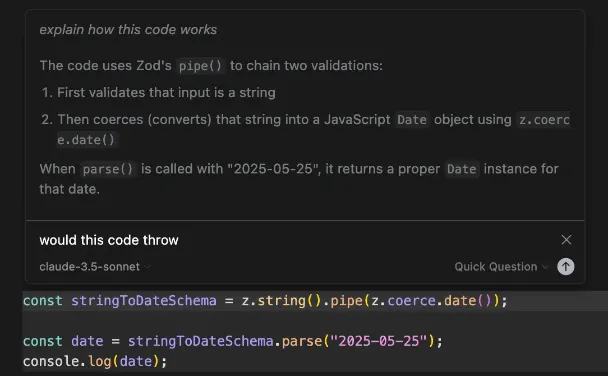
The inline chat in cursor has several options for what you can do with it by first typing CTRL + K to bring up the inline chat, and then typing @ for context options.
You can also instead of asking it to generate or edit code, ask a quick question about it in the inline chat:
Adding context
You can add context with the @ symbol as a prefix.
@docs: adds documentation@web: tells cursor to do a web search@<filename>: adds the specific file as context
Adding docs
You can add certain websites' documentation to cursor, and cursor will index it and be able to reference it via the @docs context command. There are two ways to add documentation to certain websites you want:
- Add when prompted to add a new documentation when typing the
@docscommand - Add in the cursor features settings.
Cursor rules
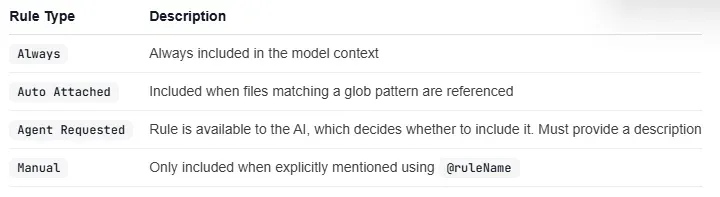
Cursor rules are a new way to enforce coding style and give cursor additional context when you're chatting with it. There are 4 ways to create rules:
- Rules live in the
.cursor/rulesfolder in your workspace, and are single text.mdcfile. - You can also create a rule in the command palette in cursor
- You can ask cursor chat to create a rule for your project with the
/Generate cursor rulesslash command. - Go to cursor settings -> project settings -> and create rules.
Here are the 4 types of rules you can have:
 Here is an example of a cursor mdc rule, where yu can add in additional file context as well with @ symbols.
---
description: RPC Service boilerplate
globs:
alwaysApply: false
---

- Use our internal RPC pattern when defining services
- Always use snake_case for service names.

@service-template.ts
You can get a list of reusable rules for each language that makes working on your codebase even better: